pts backup
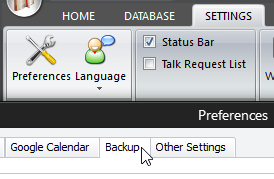 Click Preferences on the SETTINGS ribbon panel (or CTRL + T). Then select the Backup tab. Click Preferences on the SETTINGS ribbon panel (or CTRL + T). Then select the Backup tab. |
|---|
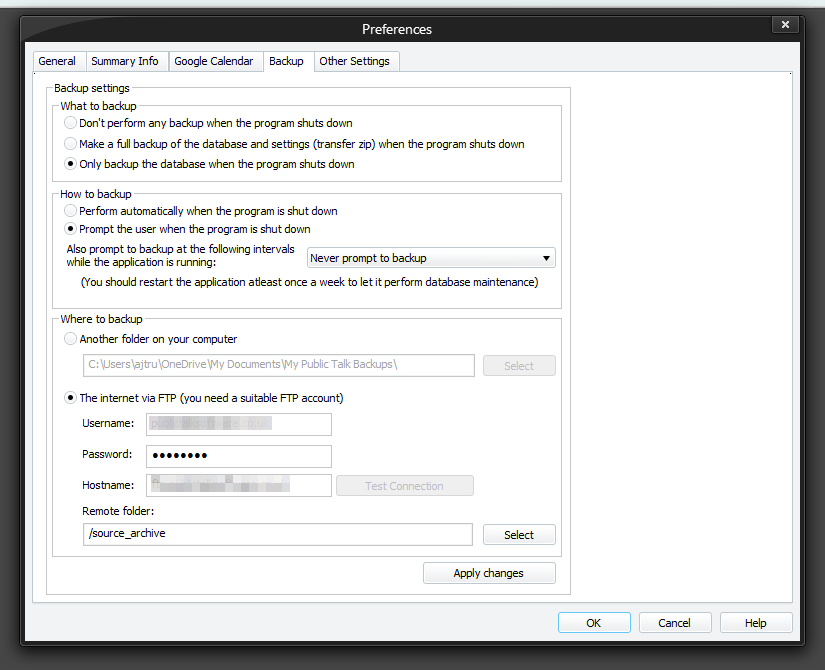
Public Talks has always allowed you to backup your database and settings using:
However, this puts the responsibility on the user to remember to manually backup the database from time to time. It is all too easy to forget! Before you know it, you are in a disaster recovery situation and don't have all the schedule changes that you had arranged yesterday!
The Backup feature helps you avoid such situations if it is set up properly and maintained. There are three main steps involved:
 You need to click Apply Changes to activate your changes to the backup feature.
To learn more about the features of this window, glance down the table below or highlight one of the aforementioned steps.
The first thing to do is to decide what information you would like to get backed up on an automatic basis.
There are three settings to choose from:
- Don't perform any backup when the program shuts down
- Make a full backup of the database and settings (transfer zip) when the program shuts down
- Only backup the database when the program shuts down
In is entirely up to you as to what you want to back up. One suggestion is that you use the third option. This way you always have your database backed up. Then, whenever you make changes to the system (e.g. modify custom report scripts) you can create a transfer zip instead. Whatever works for you.
Next, you decide how you want the backup to be performed. You can choose from:
- Perform automatically when the program is shut down
- Prompt the user when the program is shut down
The latter might be the best choice because there may be times when you start up Public Talks just to review details and you don't actually make any changes. Thus, the latter option makes it a flexible automatic backup. best of both worlds!
In addition, the Backup feature can prompt you to backup at regular intervals. The available choices are: Never prompt to backup Prompt to backup every day Prompt to backup once a week Prompt to backup once a month This is useful for those of you who like to keep Public Talks running constantly in the background. Thus, you don't have to wait until you shut the application down. It will display a small notification which, when clicked, will start the backup process using your active settings. 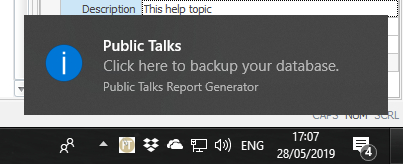 You should restart the application once a week, the day after you have had your Public Meeting, so that the application and perform some routine maintenance operations. You should restart the application once a week, the day after you have had your Public Meeting, so that the application and perform some routine maintenance operations. |
|---|
Finally, you decide where you want to backup the database (and settings) to. You have two choices:
- Another folder on your computer
It might be useful to use this option if you are using an online facility such as DropBox. So your data files gets copied into your backup folder and then DropBox will sync the data files to your online account so that you have a remote backup.
- The internet via FTP (you need a suitable FTP account)
As an alternative, you can backup the data remotely to an FTP site. But you will need to have a valid account for this purpose.