pts rearrange dates
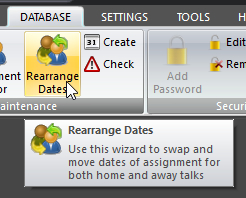 Click Rearrange Dates on the DATABASE ribbon panel to display this wizard. Click Rearrange Dates on the DATABASE ribbon panel to display this wizard. |
|---|
Use this wizard to change the date of a home or away talk to another date. It is really easy to do as long as you are familiar with each step of the wizard. A description of each step follows:
Step 1 of 4 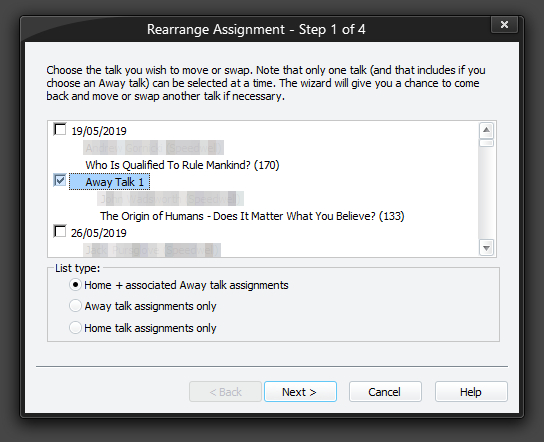 You are presented with this page when you start the wizard. As mentioned on the page, just select one talk assignment that you would like to rearrange. You are presented with this page when you start the wizard. As mentioned on the page, just select one talk assignment that you would like to rearrange.  Only talk assignments from today onwards will be displayed in the list, since it is assumed that you would not want to rearrange a talk that has already been heard or given. You can filter the list of assignments to display: Home talks Away talks Both It is important to understand that only associated away talks get displayed in the list if the first list type option is selected. What this means is that there must be a matching home talk assignment for the away talk assignments to be displayed. If you have an away talk with no matching home talk, then select the second list type where all away talks will be listed. You will not be able to proceed to the next step until you have selected one talk assignment. Press Next to move on to step 2. Only talk assignments from today onwards will be displayed in the list, since it is assumed that you would not want to rearrange a talk that has already been heard or given. You can filter the list of assignments to display: Home talks Away talks Both It is important to understand that only associated away talks get displayed in the list if the first list type option is selected. What this means is that there must be a matching home talk assignment for the away talk assignments to be displayed. If you have an away talk with no matching home talk, then select the second list type where all away talks will be listed. You will not be able to proceed to the next step until you have selected one talk assignment. Press Next to move on to step 2. |
|---|
Step 2 of 4 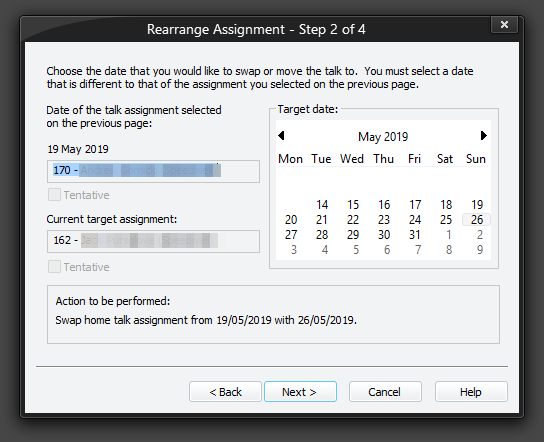 Use the calendar to select which date you would like to move the selected talk assignment to. The action to be performed will change as you choose different dates. This will let you know if you are moving or swapping an assignment. The current talk assignment for the target date is also displayed for you along with the tentative status. As for step 1, you cannot select a date in the past and you cannot select the same date as the talk you chose from step 1. However, note that if the source talk date is today, and you are showing the calendar for the first time, it selects today by default. Press Back if you want to alter the talk that you would like to rearrange. You will not be able to proceed to the next step if the date selected is the same as the talk you chose from step 1. Press Next to move to step 3: If you are swapping home talks, then the page immediately below is displayed. If you are moving an away talk to a date which already has away talks assigned, then the page further below will be displayed. Otherwise, the update will take place when you press Next and you will be taken to step 4. Use the calendar to select which date you would like to move the selected talk assignment to. The action to be performed will change as you choose different dates. This will let you know if you are moving or swapping an assignment. The current talk assignment for the target date is also displayed for you along with the tentative status. As for step 1, you cannot select a date in the past and you cannot select the same date as the talk you chose from step 1. However, note that if the source talk date is today, and you are showing the calendar for the first time, it selects today by default. Press Back if you want to alter the talk that you would like to rearrange. You will not be able to proceed to the next step if the date selected is the same as the talk you chose from step 1. Press Next to move to step 3: If you are swapping home talks, then the page immediately below is displayed. If you are moving an away talk to a date which already has away talks assigned, then the page further below will be displayed. Otherwise, the update will take place when you press Next and you will be taken to step 4. |
Step 3 of 4 (swapping home talk assignments) 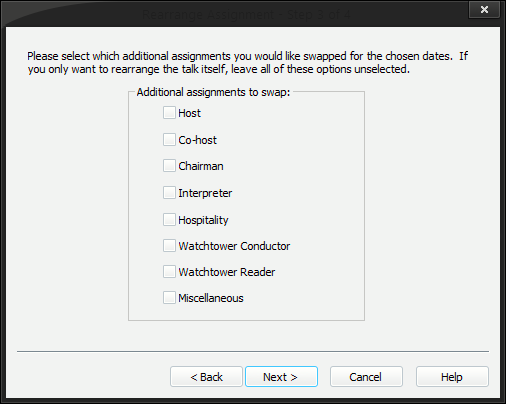 This page is only displayed if you are swapping home talk assignments. Since there are several other assignments for a home talk entry, you are given the opportunity to select which additional assignments you would like swapped. Under most cases, you would leave these assignments as they were and just swap the talk assignment itself. Note that the description of the last assignment Miscellaneous can changed on the Labels option page. You can still press Back to return to steps 1 or 2 and select a different talk or date. Press Next to perform the update. You will then be taken to step 4. This page is only displayed if you are swapping home talk assignments. Since there are several other assignments for a home talk entry, you are given the opportunity to select which additional assignments you would like swapped. Under most cases, you would leave these assignments as they were and just swap the talk assignment itself. Note that the description of the last assignment Miscellaneous can changed on the Labels option page. You can still press Back to return to steps 1 or 2 and select a different talk or date. Press Next to perform the update. You will then be taken to step 4. |
Step 3 of 4 (move/swap away talk) 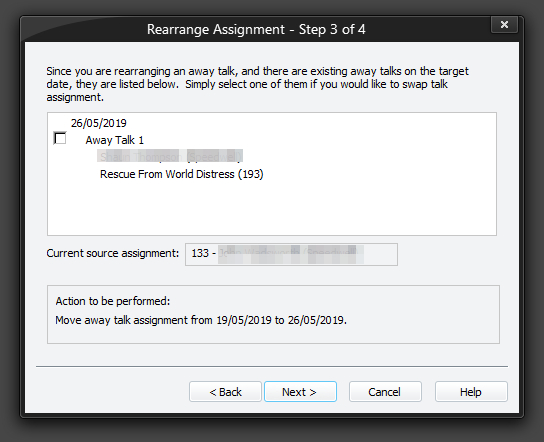 This page is only displayed when you are moving an away talk assignment and there are already away talks on the target date. If you want to swap with one of the away talks (since there may be more than one) just select the appropriate talk. Otherwise, leave them unselected and the the away talk will be moved. Again, the action to be performed will change as you select an away talk from the list. Also, the away talk assignment being moved is shown as a reminder. You can still press Back to return to steps 1 or 2 and select a different talk or date. Press Next to perform the update. You will then be taken to step 4. This page is only displayed when you are moving an away talk assignment and there are already away talks on the target date. If you want to swap with one of the away talks (since there may be more than one) just select the appropriate talk. Otherwise, leave them unselected and the the away talk will be moved. Again, the action to be performed will change as you select an away talk from the list. Also, the away talk assignment being moved is shown as a reminder. You can still press Back to return to steps 1 or 2 and select a different talk or date. Press Next to perform the update. You will then be taken to step 4. |
Step 4 of 4 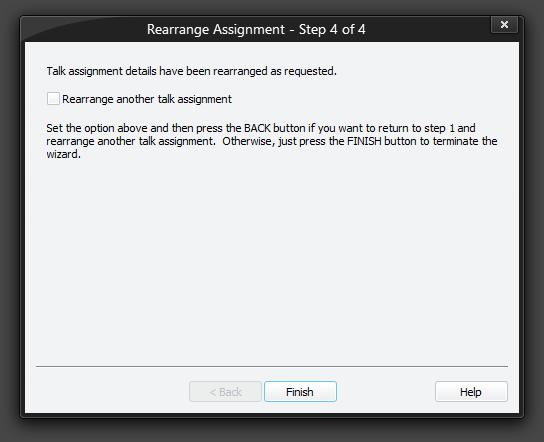 By the time you get to step 4, the update has been performed and cannot be reversed. You can no longer cycle Back through the wizard as you have been able to for steps 1 to 3. Thus, there is no Cancel button either. Set the option Rearrange another talk assignment and press the Back button if you want continue using the wizard. This will return you to step 1 to start the process all over again. Otherwise, press Finish to terminate the wizard. Any unsaved reports that are open will be updated automatically to reflect the changes you made after the wizard window is closed. By the time you get to step 4, the update has been performed and cannot be reversed. You can no longer cycle Back through the wizard as you have been able to for steps 1 to 3. Thus, there is no Cancel button either. Set the option Rearrange another talk assignment and press the Back button if you want continue using the wizard. This will return you to step 1 to start the process all over again. Otherwise, press Finish to terminate the wizard. Any unsaved reports that are open will be updated automatically to reflect the changes you made after the wizard window is closed. |