pts request user
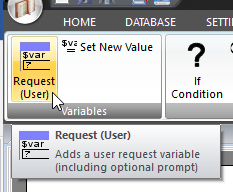 Click Request (User) on the SYSTEM ribbon panel to display the Request (User) window. Read more: Command Syntax Click Request (User) on the SYSTEM ribbon panel to display the Request (User) window. Read more: Command Syntax
|
|---|
REQUIRES commands can appear anywhere in the script, but logically they must appear before you try to use the variable somewhere else, otherwise they will show ???. It would be considered good practice, though, to declare them at the top of the script, or at least before each section that uses them. But you are not forced to. It just makes it easier to maintain.
It is actually more of a pre-processor than an actual script command. It tells the scripting parser that some data is needed from the user. Once that data has been assigned to the variable, that variable can be used through the script to substitute what the user chose for some literal text.
The usefulness of this will become apparent if you try to create a script to print out, say, all away talks being given by a certain brother. You could write one script per brother, changing the name to look for in the database each time. But hey, that wouldn't be very efficient! Instead, use a variable to represent the brother's name, and thus you only have one script. Every time the user runs it with a different brother's name, it's the same script executing each time, but it prints out different data.
In order to actually use your variable within the editor, you must update the value that the variable refers to. This is covered in the Script Editor help topic.
You must press Insert (or Update if editing an existing command) for your changes to be applied to the current script in the editor.
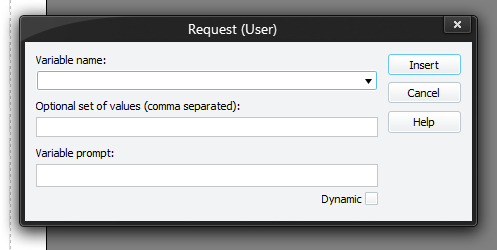
To learn more about the features of this window, glance down the table below or highlight the control you are interested in by clicking on the screenshot above.
Variable name
Use the variable name edit box to specify the name that this piece of data will be known by in the script from now onwards. It should be a single word.
Optional set of values (comma separated)
If you know ahead of time the preferred choices that you want to choose from then you should fill in the Optional set of values to use edit box.
Each value should be separated with a comma (,). These options will then automatically show in the drop-down list for you to select from (similar to AwaySpeaker and Congregation variables etc.).
 If you specify only one optional value, then it will be treated as a default value (see below) rather than an option for a drop-down list.
Variable prompt
Use the variable prompt edit box to specify the text to be presented to the user for each variable required (this will happen when you actually generate a custom report itself).
You can use the drop-list to select from some predefined variable names:
- AwaySpeaker
- Congregation
- LocalSpeaker
- LocalAndAwaySpeaker
These are special because they will provide you with drop-down lists to select the values to assign to the variables.
Dynamic
Variables can also be set as dynamic. Such variables do not have a prompt and are only used internally within the script.
However, declaring dynamic variables in this way has been superseded by the Set New Value script command. In many instances this does away with the need to use a REQUIRES command. But you must still use REQUIRE commands whenever you need the user to make a selection or enter a value.
- The custom script editor will raise multiple errors whenever uninitialised variables have been used for LOOP and IF criteria. Consider using default variable values to avoid this issue. The first option specified for the VALUES parameter will become the default. The editor will use ??? when nothing has been specified for the VALUES parameter.
- You won't be allowed to duplicate an existing variable name.