pts tutorial2 module14
(Starts a new "Database" script)
| The following commands are used in this module: END_LOOP FIELD LOOP |
|---|
All this flowery stuff is all very well, but we haven't touched a single thing in our database yet. It is not going to be much of a report if it does not contain any real and pertinent data. We will now cast aside all the glitter and get down to some real report scripting. Start a new script called "Database" (no quotes).
As some of you may know, a database has rows and fields. A row is self-explanatory; a row represents all the data for a single talk, or a single congregation, or a single speaker, depending on which table you are looking at. Yes, databases also contain tables; think of a database as a library:
- Each table as a bookcase in that library.
- A bookcase has shelves (rows).
- Each row has lots of books (fields) on it.
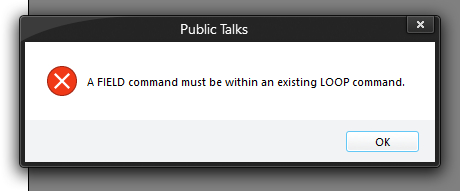 So we should be able to pick out any field from that row. Sound fine? On the CONTENT ribbon panel, click Insert Field. It produces an error message. Why? The problem is, we have not told the parser what table we're using, and we have not told it what row(s) to work from. Consequently, it has no clue about what fields there should be right now. So logic tells us we have to do something before we try and select fields. So we should be able to pick out any field from that row. Sound fine? On the CONTENT ribbon panel, click Insert Field. It produces an error message. Why? The problem is, we have not told the parser what table we're using, and we have not told it what row(s) to work from. Consequently, it has no clue about what fields there should be right now. So logic tells us we have to do something before we try and select fields. |
|---|
We could, if we wanted, pick out every single row one by one with separate commands, and work that way. It would be perfectly valid, but also an extremely long script since there could be hundreds of rows to work from in any one table. Furthermore, we don't know how many rows there are altogether, so how would we know how many times to write that bunch of script lines?
What we need to do is tell the parser to walk all the rows in the database, and then we will issue commands to extract fields from each row it gives us. Thus, the script engine has a LOOP command.
- Click Database Loop. This also pops up a window:
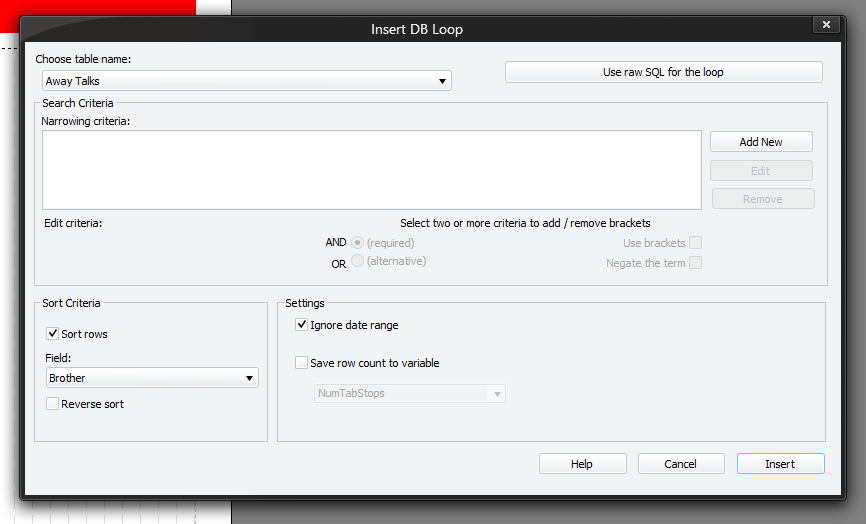
The table name drop-down list at the top of the window should contain a list. These are your available tables in the database.
- Select "Away Talks".
- The controls below this list are irrelevant for now so we will ignore them.
- Switch off Sort rows which is down the bottom left (we will leave them unsorted).
- Switch off Ignore date range.
- Click Insert.
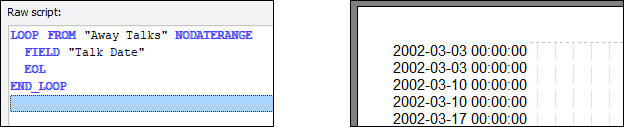
Notice how it not only puts the initial LOOP command in, but also a matching END_LOOP. We have to tell the parser when we get to the end of the things we want to do for each row, otherwise it wouldn't know when we wanted it to complete the loop and do non-loop stuff again.
This is the simplest loop you can write; it simply iterates every single row in the table without prejudice, and if you put some script within the loop, you could start actually extracting data from those rows. At the moment, the output shows nothing; that's because we have no script inside the loop, so it does absolutely nothing with each row it is given.
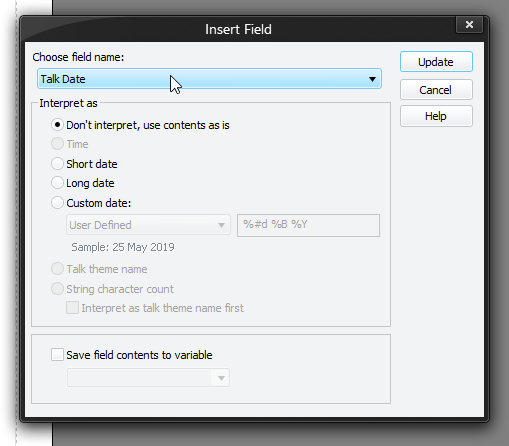 So let's do something. Highlight the END_LOOP command (since we want to insert commands at that point, so that they go before the end of the loop). Click Insert Field, and this time note that there are fields to choose from. How does it know this now? Because the parser looks to see at what point in the script you are extracting fields, and so can work out which loop is currently in effect. Since we are inside our simple loop now, it knows it is dealing with the Away Talks table and so can produce the correct fields. Choose Talk Date from the list. Click Insert. Still nothing, huh? Quite right. So let's do something. Highlight the END_LOOP command (since we want to insert commands at that point, so that they go before the end of the loop). Click Insert Field, and this time note that there are fields to choose from. How does it know this now? Because the parser looks to see at what point in the script you are extracting fields, and so can work out which loop is currently in effect. Since we are inside our simple loop now, it knows it is dealing with the Away Talks table and so can produce the correct fields. Choose Talk Date from the list. Click Insert. Still nothing, huh? Quite right. |
|---|
- Insert an EOL after that command (and still before END_LOOP), and all will be revealed.
| Now, please: Click Save Script Optionally click Close Script Then when you are ready, open the "Database" script and continue with module 15. |
|---|
| Previous Module | Next Module |
|---|