pts talk request list print
 Click Report on the Talk Request List window to display and print the report. Click Report on the Talk Request List window to display and print the report. |
|---|
You can create a report correctly formatted for printing. The report will show the fully expanded data (but it will not include the talk history).
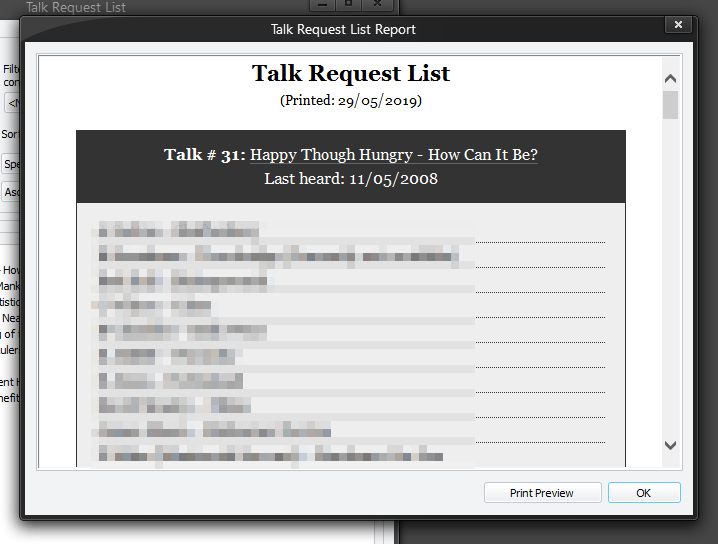 When you click the Report button this display (or similar) is shown. Click the Print Preview button to open a Print Preview window which has additional controls allowing you to print the report. You might find it handy to install a PDF printer. This way you could print the report as a PDF file and email it to appropriate individuals. When you click the Report button this display (or similar) is shown. Click the Print Preview button to open a Print Preview window which has additional controls allowing you to print the report. You might find it handy to install a PDF printer. This way you could print the report as a PDF file and email it to appropriate individuals. |
|---|
Report Style 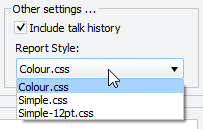 You may adjust the formatting of the printed report by selecting a different style from the Report Style drop-down list. Three styles have been provided so far. These style formats are known as cascaded style sheets (CSS). You may select one according to your preferences. Alternatively, if you are familiar with the CSS syntax and the role they play in HTML documents, you may create your own custom styles. Feel free to ask in Mantis BT or the support forum if you need help in customizing the report. The dates displayed on the report are formatted using the application General preferences. You may adjust the formatting of the printed report by selecting a different style from the Report Style drop-down list. Three styles have been provided so far. These style formats are known as cascaded style sheets (CSS). You may select one according to your preferences. Alternatively, if you are familiar with the CSS syntax and the role they play in HTML documents, you may create your own custom styles. Feel free to ask in Mantis BT or the support forum if you need help in customizing the report. The dates displayed on the report are formatted using the application General preferences. |