pts database loop rawsql
 Click Use raw SQL for the loop on the Insert DB Loop window to display the Raw SQL window. Read more: Command Syntax Click Use raw SQL for the loop on the Insert DB Loop window to display the Raw SQL window. Read more: Command Syntax
|
|---|
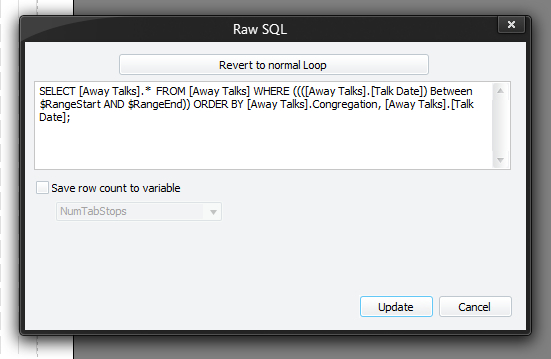
This window allows you to perform more complex database queries. You can design your query using Microsoft Access if you prefer and then transfer it into the editor. The above query using multiple sorting on the record set.
 It is assumed that you are already familiar with writing SQL queries and you use this facility at your own risk.
You must press Insert (or Update if editing an existing command) for your changes to be applied to the current script in the editor.
You can still save the row count to a variable, just like you can on regular loops.
Since we're using raw SQL, standard SQL rules must apply:
-
Literal text and variables designed to hold such data (except dates)
= Single quotes -
Literal dates and variables designed to hold dates
= No delimiter (assumes date has been SQL formatted - if not, requires a hash each end) -
Literal numbers (floating, integer or true / false) and variables designed to hold such data
= No delimiter - Expression function parameters
= Double quotes (our functions require double quotes around strings, and also around dates (even if SQL formatted)).
Notes:
- You must specify the sort order yourself within the SQL query (if required).
- You can use variables within your query.
Don't forget to wrap them with ' ' if they relate to a textual comparison (e.g.: '$LocalCong').
- You use CURRENT."Field name" within your query.
- You must not duplicate field names when performing table JOIN's. Use the SQL ALIAS command to ensure that each field in your resulting query is unique.
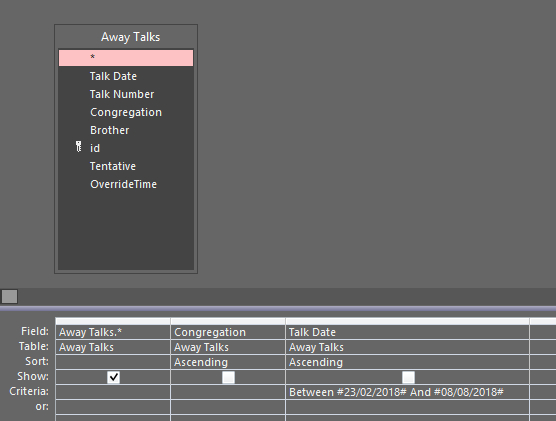
What you can do is design your SQL query from inside Microsoft Access. For example, the query shown above looks like this in Microsoft Access:
Once you have designed your query you can the SQL View in Microsoft Access to see what the query looks like:
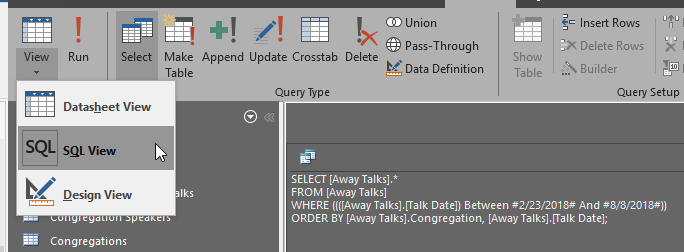
You can then take this query and adapt it to correct syntax for the Custom Script Editor.