pts talks list setup
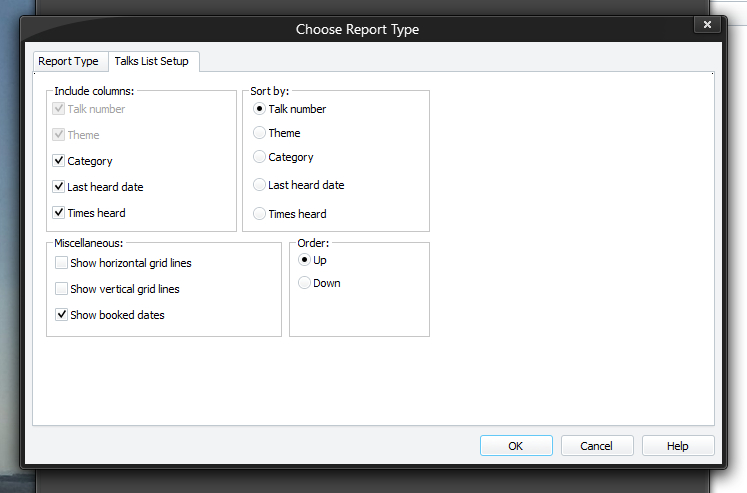
The Talks List Setup page allows you to specify how the report will be created. To be able to access this setup page, you must select Talks List from the list of report types on the Report Type tab. All the settings are saved when you dismiss the window by pressing the OK button.
To learn more about the features of this property page, glance down the table below or highlight the control you are interested in by clicking on the screenshot above.
Include columns
You can choose what information that you want to be displayed in the created report. The available columns are:
- Talk number
- Theme
- Category
- Last heard date
- Times heard
Tick the columns that you require.
 Talk number and Theme must always be included, so they are disabled.
Sort by
You can choose how you want the entries sorted. Select from:
- Talk number
- Theme
- Category
- Last heard date
- Times heard
You can only sort by columns that you chose to include in the created report. For example, if you unchecked the Category option in the Include columns list, then the Category sort by option will be disabled.
Order
You can choose in what direction the entries will be sorted:
-
Up
Choose Up if you want the report in ascending order. -
Down
Choose Down if you want the report in descending order.
These settings are only enabled when the Simple report mode is selected.
Show horizontal grid lines
Check this option if you want to have horizontal grid lines on the report.
Show vertical grid lines
Check this option if you want to have vertical grid lines on the report.
Show booked dates
Choose this option when you want to take into account talks which have been scheduled for a future date. For every talk, it will take the latest scheduled date for this talk (if there is one) and use that instead of the date in the public talks table. When it uses a scheduled date, a small tick is placed against the entry.
This option is disabled when the Last heard date option is not set.
This feature is really useful because it ensures you get an accurate listing of your talk history and therefore will help you in choosing which talks you want to hear next, since you will easily see which talks have been scheduled, but not yet heard.