pts journal tab
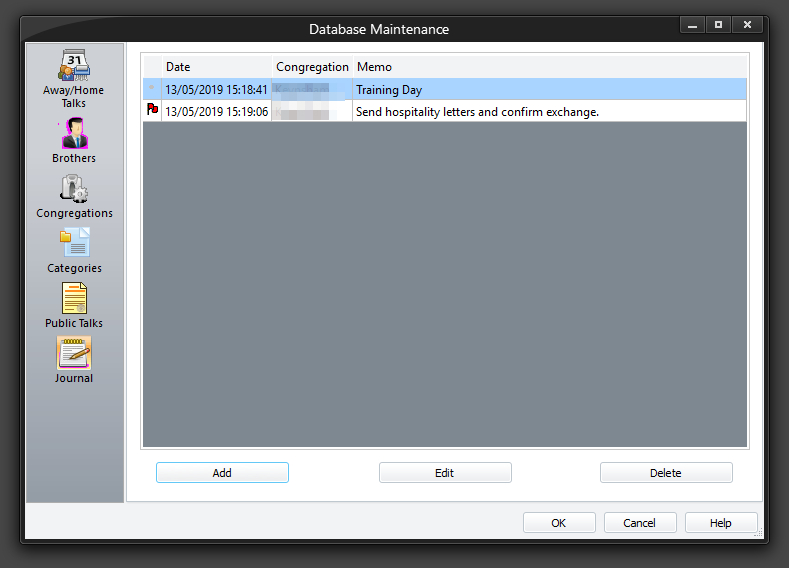
The Journal property page allows you to manage free-format notes which are time-stamped and optionally related to a congregation.
The facility is very flexible. For example, you may use it as:
- A work in progress “do not forget” list to help you keep track of your dealings with other congregations
- A record of your activity in arranging home and away talks
- Replacement of whatever notes you make manually in your role as Talk Coordinator
You can also highlight entries as important and sort the list by:
- Importance
- Date of last edit
- Congregation
- Contents of the journal entry
 Note that the Date column indicates the last time the entry was edited. However, the database also retains the date when the entry was created. Although created timestamp details are not displayed here, you can use them if desired with the custom report Scripting facility.
To learn more about the features of this property page, glance down the table below or highlight the control you are interested in by clicking on the screenshot above.
This property page is one part of the Maintenance Dialogue. Please click on the link to get an overview of the entire window.
Add
Press the Add button to add a new journal entry into the database. When clicked, it will display the Add Journal Entry window.
Edit
Press the Edit button (or the Enter key) to edit the currently selected journal entry. When clicked, it will display the Edit Journal Entry window.
Edit Entry Window 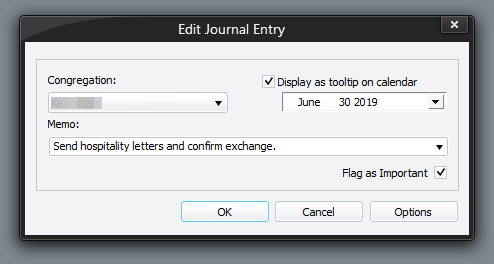 Congregation Use the drop list to select a congregation to associate this journal entry with. The default is <None> which is at the very top of the list. Display as tooltip on calendar You can also get any journal entry to display on your Away / Home maintenance calendar as a tooltip. To do this, set the option Display as tooltip on calendar and then use the calendar control to specify which date to associate the journal entry with. More than one journal entry can be set as a tooltip and they will show line under the other. However, the tooltip will only display the first 50 characters for each tip. Memo This is where you specify the journal entry text. You can type in a maximum of 255 characters. This should be adequate for most user requirements.You can use the drop-down list to select one of your predefined journal memo text entries or type in a new one as required. The predefined memo text is customized by clicking Options button. This will display a po-pup window where you can add, edit or delete as required. Flag as Important Set this option to flag the journal entry as important. These journal entries are indicated with a red flag next to the date stamp. Congregation Use the drop list to select a congregation to associate this journal entry with. The default is <None> which is at the very top of the list. Display as tooltip on calendar You can also get any journal entry to display on your Away / Home maintenance calendar as a tooltip. To do this, set the option Display as tooltip on calendar and then use the calendar control to specify which date to associate the journal entry with. More than one journal entry can be set as a tooltip and they will show line under the other. However, the tooltip will only display the first 50 characters for each tip. Memo This is where you specify the journal entry text. You can type in a maximum of 255 characters. This should be adequate for most user requirements.You can use the drop-down list to select one of your predefined journal memo text entries or type in a new one as required. The predefined memo text is customized by clicking Options button. This will display a po-pup window where you can add, edit or delete as required. Flag as Important Set this option to flag the journal entry as important. These journal entries are indicated with a red flag next to the date stamp. |
|---|
Delete
Press the Delete button (or the Delete key) to remove the selected journal entry from the database. You are asked to confirm your actions since the data will be permanently deleted, and the process can't be undone.
Note that Deleting a congregation (Congregations maintenance page) will automatically delete all journal entries associated with it. However, journal entries for congregation (None) have to be deleted individually.
You may also access and manage journal entries from the Away / Home Talks database maintenance page. When you are displaying that form, all you need to do is right-click on any date in the calendar to display a context menu which will allow you to update the tooltip as needed.