pts send to microsoft outlook
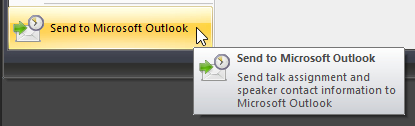 Click Send to Microsoft Outlook on the the Main application menu to use this feature. Click Send to Microsoft Outlook on the the Main application menu to use this feature. |
|---|

This feature of Public Talks allows you to send database information across into your Microsoft Outlook contacts and calendar appointments.
 The actual automation of Microsoft Outlook is handled by another application, OutlookIF2016.dll, which is a Microsoft .NET COM Assembly. This is already installed with Public Talks. It is required for this importing to operate.
The Microsoft .NET COM Assembly requires the Microsoft .NET Framework 4.6.2 or higher to be installed. The installer would have offered to download it if it felt it was required. In addition, you will need Microsoft Office 2016 or higher installed.
The window is split into two parts:
- The upper area is related to the importing of speakers and coordinators into the Microsoft Outlook contacts.
- The lower area is related to the importing of home and away talk assignments into the Microsoft Outlook appointments calendar.
Displaying this window should automatically start an instance of Microsoft Outlook (and terminate it when you press Close).
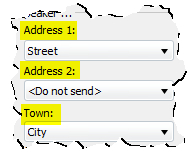 The label descriptions (highlighted in yellow) that are displayed are controlled by the Memo Label settings in the application preferences. The label descriptions (highlighted in yellow) that are displayed are controlled by the Memo Label settings in the application preferences. |
|---|
The left hand side pertains to the speaker. Thus the database information being used here is taken from the Congregation Speakers table (the notes and five memo fields).
The right hand side pertains to the coordinator. Thus the database information being used here is taken from the Congregations table (the CoordinatorNotes and five CoordinatorMemo fields). The Include Coordinators option must be ticked for these controls to be enabled.
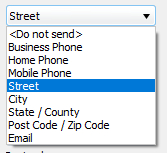 Use the drop-down lists to map your database fields as required. As you can see you have full control over the information you want to include when creating the contacts in Microsoft Outlook. The items in the drop down list relate to items in the Microsoft Outlook contact window. Select <Do not send> if you want to skip this field and exclude it from the created contact entry. Use the drop-down lists to map your database fields as required. As you can see you have full control over the information you want to include when creating the contacts in Microsoft Outlook. The items in the drop down list relate to items in the Microsoft Outlook contact window. Select <Do not send> if you want to skip this field and exclude it from the created contact entry. |
|---|
| Please Note At the moment, there are some issues that you should be aware of: Imported coordinators will show under the congregation name in your Microsoft contacts list. You can end up with duplicated entries if your coordinator is also a speaker! Any subsequent changes that you make inside Outlook will be lost when you re-import from here again. |
|---|
Clear All
Press the Clear All button to delete all Public Talk speaker and coordinator contacts from your Microsoft Outlook contacts list. Don't worry - it will only remove contacts which have the special user property set to PTSContact.
Send
Press the Send button to send all of your speakers (and optionally your coordinators) across into Microsoft Outlook using your chosen field mappings.
Note that any existing contacts in Microsoft Outlook (PTSContact) will get deleted first before the importing takes place.
| Importing Talk Assignments As previously mentioned, the lower area is related to the importing of talk assignment details into the Microsoft Outlook appointments calendar. The Clear All and Send buttons work is the same way as just described. The only difference is that they are working on the appointments calendar instead and will only work with calendar items with the category Public Talk. Options Press the Options button to display a set of additional settings which can be customised to affect how the appointments are created in Microsoft Outlook: | 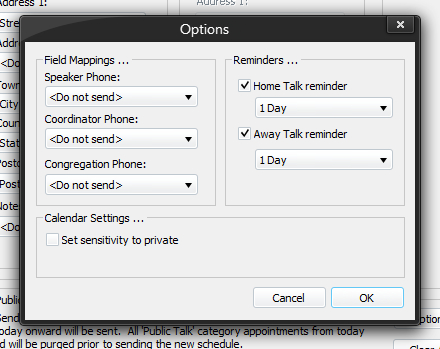 Use this window to specify which memo fields (if any) you want to associate with the Coordinator, Congregation and Speaker respectively. The details presented in the drop-down lists are obtained from your Memo Label settings. You can also set up reminders so that Microsoft Outlook will alert you in advance of the assignment. Finally, you can set the sensitivity to private. My understanding is that this setting will prevent the appointments from displaying in any public calendar that you are using. |
| --- |
|
| --- |
Use this window to specify which memo fields (if any) you want to associate with the Coordinator, Congregation and Speaker respectively. The details presented in the drop-down lists are obtained from your Memo Label settings. You can also set up reminders so that Microsoft Outlook will alert you in advance of the assignment. Finally, you can set the sensitivity to private. My understanding is that this setting will prevent the appointments from displaying in any public calendar that you are using. |
| --- |
|
| --- |