pts home talks setup

The Home Talks Setup page allows you to specify how the report will be created. To be able to access this setup page, you must select Home Talks from the list of report types on the Report Type tab. All the settings are saved when you dismiss the window by pressing the OK button.
To learn more about the features of this property page, glance down the table below or highlight the control you are interested in by clicking on the screenshot above.
Start Date
Press on the arrow to choose the start date for the report. You can also click on the separate parts of the date in the edit box and use the arrow keys to adjust the date. This option is disabled if the Display All Entries option is checked.
End Date
Press on the arrow to choose the end date for the report. You can also click on the separate parts of the date in the edit box and use the arrow keys to adjust the date. This option is disabled if the Display All Entries option is checked.
Display All Entries
Check this option if you want to generate a report with all entries included. When checked, the date options (described above) get disabled.
Show horizontal grid lines
Check this option if you want to have horizontal grid lines on the report.
Show vertical grid lines
Check this option if you want to have vertical grid lines on the report.
Assignments to Include
You can select which assignments you would like included on the created report. You can choose from:
- Chairman
- Interpreter
- Hospitality
- Watchtower Conductor
- Watchtower Reader
-
Home Talk Numbers
The talk numbers will be shown in parentheses after the theme on the report. -
Miscellaneous
Note that the description Miscellaneous can changed on the Labels option page.
Include Away Talks
Check this option if you want to include away talks information in the report. To fit the generated report on one sheet of paper, you will need to set your printer page setting to A4 landscape. If this option is unchecked, then the Text Colour option gets disabled.
Away Talks Text Colour
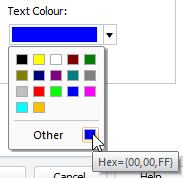 Use the drop-down list to select which colour you would like away talk information to be highlighted in. This setting is disabled if the Include Away Talks option is not set. By setting it to a different colour, the away talk information will stand out against the home talk information. Use the drop-down list to select which colour you would like away talk information to be highlighted in. This setting is disabled if the Include Away Talks option is not set. By setting it to a different colour, the away talk information will stand out against the home talk information. |
|---|
Highlight tentative
Set this option if you want to highlight any tentative home / away talk assignments in a different colour.
Tentative Text Colour
|
Use the drop-down list to select which colour you would like tentative home / away talk assignments to be highlighted in. This setting is disabled if the Highlight tentative option is not set. |
|---|
Colour Properties
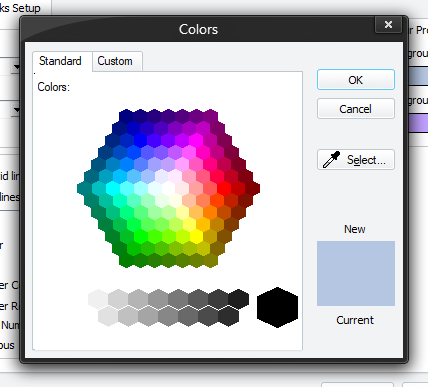 If desired, you can assign a background colour for alternating rows on the report. Press Select to display a colour selection window. Make your choice and press OK. Notice that you have more colour choices for these settings because this is a background colour and most likely you will not want to select a vivid colour. If desired, you can assign a background colour for alternating rows on the report. Press Select to display a colour selection window. Make your choice and press OK. Notice that you have more colour choices for these settings because this is a background colour and most likely you will not want to select a vivid colour. |
|---|
Personal Settings The Home Talks report can be personalised to meet your needs. All of the headings can be changed. Use this drop-down list to select the heading you want to modify. Once selected, the current value gets shown in the edit box:  You can then edit the text. The settings get saved when you click OK to create the away slips or choose the Report Type property page. You can then edit the text. The settings get saved when you click OK to create the away slips or choose the Report Type property page. |
|---|