pts tutorial2 module12
(Starts a new "EvenMoreTextAttribs" script)
| The following commands are used in this module: EOL TAB TEXT |
|---|
We promised earlier that it was possible to achieve mixed alignments on the same line. We didn't lie when we said ALIGN can't do it. That is absolutely correct (not relatively!). But if you haven't guessed by now, these tab thingies are a bit more sophisticated, and they can do the job.
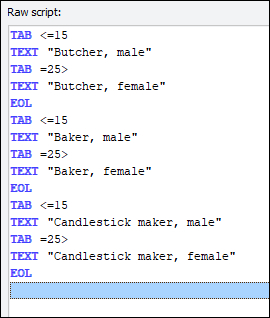 Start a new script to ensure we all start from the same setup. Call it "EvenMoreTextAttribs" (no quotes).
- Insert a TAB command, absolute, value of 15, with Right alignment on it.
- Insert a TEXT command using "Butcher, male" (no quotes).
- Insert a TAB command, absolute, value of 25, with Left alignment.
- Insert a TEXT command using "Butcher, female" (no quotes).
- Insert an EOL.
Repeat the above physical output line two more times using:
- "Baker" instead of "Butcher" in the TEXT commands for the second line.
- "Candlestick maker" instead of "Butcher" or "Baker" for the third line.
You should end up with two distinct columns, the males on the left sprawling out to the left but lined neatly near the centre of the page, and the females to the right, sprawling out to the right but aligned neatly near the centre of the page.

See? Two different alignments on the same physical line. We're nothing if not cunning.
To explain: for each of the males, we inserted a TAB with Right alignment. This means that all TEXT commands issued following this (up to the next TAB command or EOL) will be chained together in the normal left-to-right sequence and then the whole bunch aligned with their right edge on the specified tab position. Right alignment = right edge all lined up.
For the females, we inserted a TAB with Left alignment. Thus, the bunch of TEXTs following (up to the next TAB or EOL) all got aligned with their left edge on the specified tab position. Left alignment = left edge all lined up.
If we had used Centre alignment, the bunch of TEXTs following (up to the next TAB or EOL) would get aligned with their centres on the specified tab position.
 Notice that in both cases, the text sprawls away from the tab position in the opposite direction, to always ensure the correct edge is lined up with the grid line. This is going to be confusing for a while, but once you get used to it we believe you will find it powerful. Remember the weird TAB =5> ? The arrowhead in that shows which way the text will sprawl from the tab position.
 This is probably giving you a headache; take a break - there are probably more headaches to come (sorry!).
| Now, please: Click Save Script click Close Script Then when you are ready continue with module 13. |
|---|
| Previous Module | Next Module |
|---|