pts expression editor
 Click on the Expression button on any supported script command window in the Custom Script Editor to display the Expression Editor. Click on the Expression button on any supported script command window in the Custom Script Editor to display the Expression Editor. |
|---|
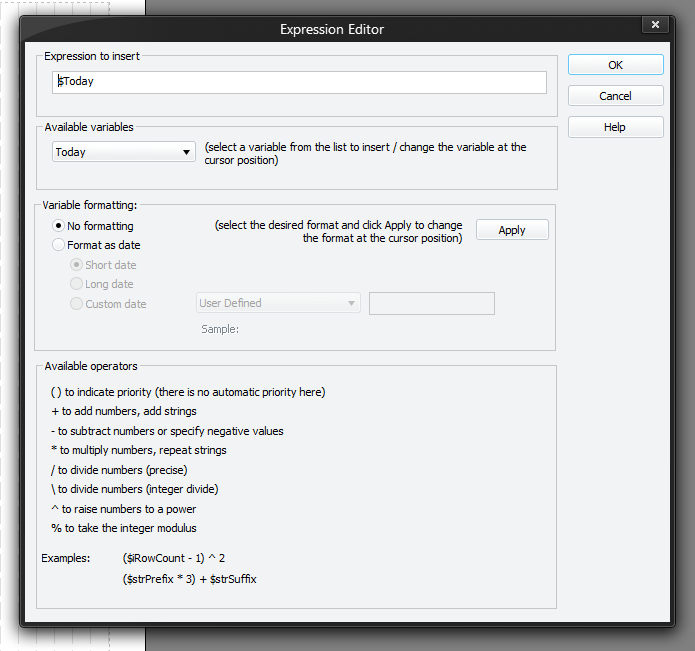
The Expression Editor allows you to build more complex values that involve variables and mathematical / string operations to combine them. Such expressions can then be used as:
- the start, end and increment expressions in a counting loop
- to update the value of variables used in IF expressions
- as embedded portions of TEXT and PARAGRAPH output
- or LOOP criteria,
- and in a few other places where a number or string value is expected.
Operators (the symbols that combine variables and literal values) do not have any kind of priority over each other unlike in most programming languages, so they will be evaluated in the order they are given. To overcome this, you must use normal brackets ( and ) to group together parts that must be evaluated first. The expression parser will work these parts out and replace them before continuing with the rest of the expression.
There are a number of places where expressions you have created will be surrounded by curly braces { and }. These are required in certain places (such as TEXT and LOOP) to indicate that what follows must be evaluated and replaced before trying to obey the command. Where an expression is expected (such as in a TAB command or in a variable assignment), the braces are not required. The Custom Script Editor will insert them automatically for you as necessary.
To learn more about the features of this window, glance down the table below or highlight the control you are interested in by clicking on the screenshot above.
Expression to insert
You can type into this edit box as required.
Available variables
You can use variables within your expressions. Select the variable that you would like to use from the drop-down list and it will be inserted at the cursor location.
If the cursor is on an existing variable (or its associated formatting) it will get replaced by the new variable.
Variable formatting
When a variable is initially selected the formatting will be automatically set to No formatting.
If the variable contains a date, then you can set the formatting to Format as date and set the style to:
-
Short
Formats the date using your computers regional settings. Example: 15/07/11 -
Long
Formats the date using your computers regional settings. Example: 15 July, 2011 -
Custom
Formats the date using your own settings. The following controls become available for you to use:
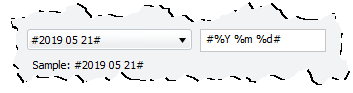 Use the drop-down list to select one of several predefined formatting styles and make further adjustments within the edit text box. More detailed information about the Custom Date Format String can be found by clicking on the link. Use the drop-down list to select one of several predefined formatting styles and make further adjustments within the edit text box. More detailed information about the Custom Date Format String can be found by clicking on the link. |
|---|
Apply
Once you have made any changes to the formatting, you must click Apply. Then, your adjustments will be reflected in the expression edit box at the top of the window.
Available operators
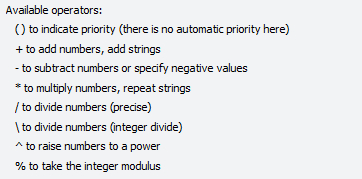 There are several operators that you can use as required. They are listed on the window as a reminder for you with a couple of examples: ($iRowCount - 1) ^ 2 ($strPrefix * 3) + $strSuffix There are several operators that you can use as required. They are listed on the window as a reminder for you with a couple of examples: ($iRowCount - 1) ^ 2 ($strPrefix * 3) + $strSuffix |
|---|
There are several functions that you can use with variables and they greatly enhance the capabilities of custom report scripting. Please find below a summary of these functions and the parameters.
 It should be noted that any literal string / substring parameters must be enclosed with speech marks unless they are variables.
There is a sample script provided with the program called Script Expression Functions that uses some of these functions.
There are several operators that you can use as required. 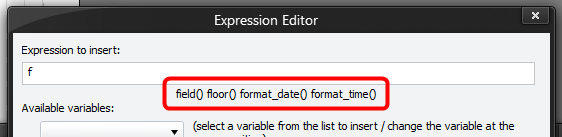 As you are typing in your expression the editor will display all possible functions that can be used: As you are typing in your expression the editor will display all possible functions that can be used: |
|---|
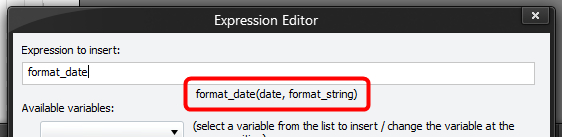 Once it has determined the function itself it will show you the parameter list: Once it has determined the function itself it will show you the parameter list: |
Please have a the Function Reference and Manipulating Dates help topics to see what is available for you to use.