pts insert date
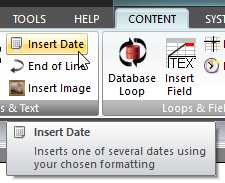 Click Insert Date on the CONTENT ribbon panel to display the Insert Date window. Read more: Command Syntax Click Insert Date on the CONTENT ribbon panel to display the Insert Date window. Read more: Command Syntax
|
|---|
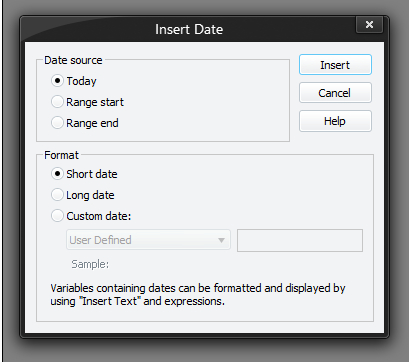
This inserts today's date, range start date or range end date using your PC's short or long date format. Since the result is a piece of text, it is affected by any FONT, COLOUR or ALIGN settings (and requires EOL to be issued to show on the screen / report).
You must press Insert (or Update if editing an existing command) for your changes to be applied to the current script in the editor.
Custom Date
Select Custom date if you want to specify yourself how the date is to be displayed in the report.
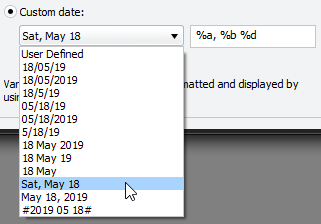 This will enable the edit box and drop-down list. Use the edit box to specify the format string that you want to use or use the drop-down list to choose from several predefined date formats. You may customize a predefined format string after you have selected it from the drop-down list. If you do this, the drop-down list will automatically change to say User Defined. See here for full details about the format codes. Days of the week and months of the year are shown in the drop-down list in the same language as the application interface. However, the sample date will take into account the Database Language as specified in the application General preferences. This will enable the edit box and drop-down list. Use the edit box to specify the format string that you want to use or use the drop-down list to choose from several predefined date formats. You may customize a predefined format string after you have selected it from the drop-down list. If you do this, the drop-down list will automatically change to say User Defined. See here for full details about the format codes. Days of the week and months of the year are shown in the drop-down list in the same language as the application interface. However, the sample date will take into account the Database Language as specified in the application General preferences. |
|---|
Range Start
Range End
The Range start and Range end options will be disabled if you have selected All Entries switched on in the Custom Script Editor.
 If any report uses the date range commands in the script, and you have selected All Entries, then the report will display "No date range specified".