pts script editor context menu
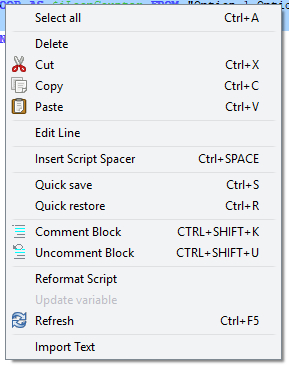 This handy context menu gives you access to several additional features which you will not find on the Custom Script Editor ribbon panels. Display it by right-clicking the Raw script list area of the editor.
To learn more about the features of this window, glance down the table below or highlight the control you are interested in by clicking on the screenshot above.
Select all (CTRL + A)
Selects everything in the list box.
Delete
Deletes the selection from the list box. A delete will fail for one reason: you are trying to delete a selection that contains a mismatched set of LOOP / END_LOOP commands (or an END_LOOP before a LOOP). If you are trying to delete a loop, select the whole loop, LOOP and END_LOOP lines inclusive.
 Note that editing a loop line will not lose its contents... but deleting a loop will.
Cut (CTRL + X)
Deletes the selection from the list box, but it also puts a copy onto the clipboard. The cut operation will fail under certain circumstances. See Delete for full details.
Copy (CTRL + C)
Copies the selection from the list box to the clipboard.
Paste (CTRL + V)
Pastes the contents of the clipboard into the list box. If you have more than one line selected when you perform a paste, the selected lines will be replaced with the new lines. If you only have one line selected when you perform the paste, the pasted lines will be inserted before that line, since the code cannot tell whether you want to replace that one line or simply insert before it. You would need to manually delete that one line before pasting to overcome this.
Under certain circumstances a paste operation might fail. This could be for one of two reasons: the lines being pasted in contain a variable REQUIRES where the variable name duplicates one that already exists in the script; or the lines being pasted in contain a mismatched number of LOOP / END_LOOP pairs (or an END_LOOP before a LOOP).
Edit Line
Edits the selected script line (as if you double-clicked it). This invokes the relevant editing window for the selected command.
This menu item will be disabled if you bring up the menu when more than one line is selected, since you can only edit one line at a time.
Insert Script Spacer (CTRL + SPACE)
This is a quick way to insert a blank line (script spacer) into the script.
Quick save (CTRL + S)
Quick restore (CTRL + R)
Use the quick save option to make an internal copy of the current script file. If you make any drastic changes to the script, you will then be able to undo it by doing a quick restore. This will return the script back to what it was when the quick save was done.
Comment Block (CTRL+SHIFT+K)
Uncomment Block (CTRL+SHIFT+U)
Use the comment block option to convert the selection from the list-box into comments. Use the uncomment block option to revert the selection from the list-box back into script commands.
Reformat Script
Select this to reformat the list box contents. It re-indents all the text correctly. This is really useful for times like when you paste a loop into another loop and want to indent it.
Update variable
This menu item is only enabled when you right-click a REQUIRES command, and as for Edit Line, only one line should be selected. It displays the Required Variables window, with the correct prompt already selected for you to update the value associated with the prompt.
Refresh (CTRL + F5)
Changes made to the script are automatically updated in the sample page preview. However, there are some instances where the display is still in-complete after this automatic update. For example, working with the IF or VARIABLE_FIELD commands might cause this issue. Use Refresh to regenerate the report.
Import Text
This is the easiest way to get a sample script provided with the program into the editor. Simply use the file window to select the relevant text file. The script will be imported at the current cursor location.