pts create report
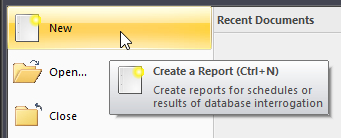
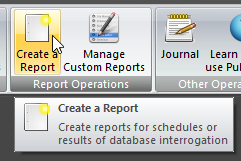 Create a Report is available from the Database Operations panel on the HOME ribbon panel. It is also available from the main application menu. You use this window to create reports from the database. Create a Report is available from the Database Operations panel on the HOME ribbon panel. It is also available from the main application menu. You use this window to create reports from the database. |
|---|
 |

The setup tab changes as you choose a report from the list. Click on the setup tab to make any required adjustments to how the report gets created. The setup information for each type of report gets stored for the next time the report is chosen.
 The only exception to this is when using custom reports.
When you have chosen the type of report you want, and have confirmed the setup options, press OK to create and display it. Then, you can save the report, print it (either to printer or PDF) or export it to another support file format. Reports that you save can be reloaded at a later date.
On the Main Application Menu you can export the report into a number of different file formats:
-
Tab-delimited
Such a file can be easily loaded into other applications, such as Microsoft Excel. -
HTML
This will retain more formatting features like the font size, style and colour. -
Microsoft Word
Word 97 or higher must be installed on your computer for this exporting option to be available (read more).
You can also set the type of fonts that you want to use for the reports. You can learn more about that lower down in this help topic or by clicking on the screenshot above. To save your font changes, you must press the OK button. Any other reports currently open will get updated to use the new fonts. These font settings are also available in the application General preferences window.
The font settings have no effect on created custom reports as those type of reports specify their own fonts (apart from the header and footer).
Public Talks uses a multi-document interface so this means than you can have more than one report open at the same time.
Public Talks can create several types of standard reports and custom reports. Please read the Overview topic to learn more about these reports.
Here is a summary of the font options available on this window:

Normal Reports
Select this option to display the current font being used when creating standard reports.
Away Talk Slips
Select this option to display the current font being used when creating away talk slips.
Include Header
Select this option if you want to display the header on the created report.
Include Footer
Select this option if you want to display the footer on the created report.
Apply to header / footer
Select this option if you want to use the chosen font for Normal Reports in the header and/or footer.
These three check options are disabled if the current font is set to Away Talk Slips. The last option will also be disabled if you opt to not include the header and footer on the report.
Sample
This displays a sample of the font being used for the selected report type.
Select Font
Press this button to display the Font Selection window.
If you do make changes to the fonts, you must dismiss the window by pressing the OK button.Otherwise your changes will be lost. Once you press OK, any open reports automatically get updated using the new font settings.