pts congregation list setup
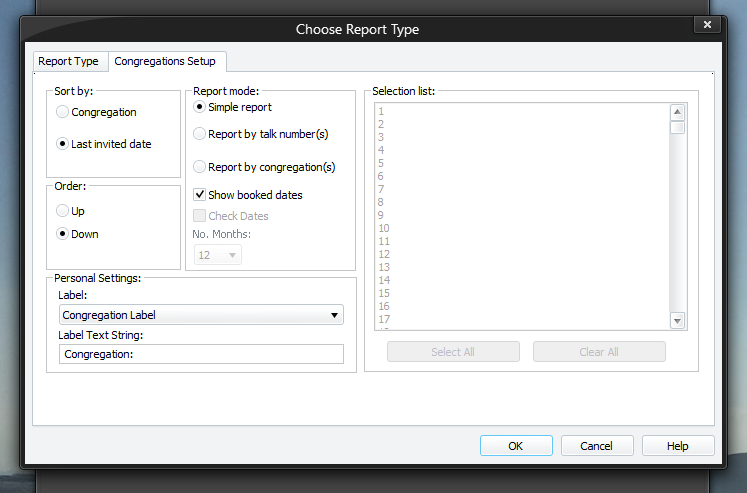
The Congregations Setup page allows you to specify how the report will be created. To be able to access this setup page, you must select Congregations List from the list of report types on the Report Type tab.
The Sort by, Sort order and Personal Settings are saved when you dismiss the window by pressing the OK button.
 It always defaults to the Simple report mode and it doesn't save the list of talk numbers / congregations that you select.
To learn more about the features of this property page, glance down the table below or highlight the control you are interested in by clicking on the screenshot above.
Sort by
You can choose how you want to sort the entries:
- Congregation
- Last invited date
These settings are only enabled when the Simple report mode is selected.
Order
You can choose in what direction the entries will be sorted:
-
Up
Choose Up if you want the report in ascending order. -
Down
Choose Down if you want the report in descending order.
These settings are only enabled when the Simple report mode is selected.
Report mode
You can create three different types of report. Each is referred to as a report mode:
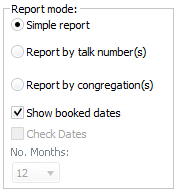 Simple report This simply shows a list of all the congregations and when they were last invited, the meeting time and who the talk coordinator is. Report by talk number This displays a list of speakers within each congregation who give the talk numbers you have selected. Report by congregation This displays a list of congregations (including the summary information from the simple report) along with its speakers and their talk outline numbers. It also shows which ones are each speaker's favourite. Simple report This simply shows a list of all the congregations and when they were last invited, the meeting time and who the talk coordinator is. Report by talk number This displays a list of speakers within each congregation who give the talk numbers you have selected. Report by congregation This displays a list of congregations (including the summary information from the simple report) along with its speakers and their talk outline numbers. It also shows which ones are each speaker's favourite. |
|---|
Show booked dates
This option is only available when you select the Simple report or Report by Congregation report mode.This option causes the application to take into account future booked dates. Such dates will be prefixed with [X].
Check Dates
These options are only available when you select the Report by Congregation report mode.
Using this setting causes the application to check and see if each speaker's talk has already been heard within the number of months specified. Use the drop-down list to specify the number of months. You can choose:
- Between 1 to 12 months
- 18 months (1.5 years)
- 24 months (2 years)
- 36 months (3 years)
As well as checking the talk numbers, it will also check when the speaker himself was last invited. If the speaker has not been heard within this time period, his name will be shown in bold typeface. Related to this, the report will attempt to display the last date and talk number for the speaker.
By using this option, you can see at a glance which talks for each selected congregation could be assigned to be heard; which speakers have not been heard recently; and which talks each speaker gave last at your hall. This will save you time because you no longer have to work out which talks for a speaker are available to hear etc..
When choosing a talk to be given you need to give consideration to the needs of your congregation and public in your area. Don't just arrange talks by date and frequency heard.
Selection list
This list box is disabled when the Simple report mode option is selected. Also, the information displayed depends on the current report mode:
- List of congregations
- List of talk numbers
Select which items you want from this list and they will be included in the report.
You can use the CTRL key to select (or deselect) several individual entries (i.e. not a continuous selection).
Select All
Press this button to select all the entries in the selection list box.
This button is disabled when the Simple report mode option is selected.
Clear All
Press this button to deselect all highlighted entries in the selection list box.
This button is disabled when the Simple report mode option is selected.
Personal Settings The report can be personalised to meet your needs. All of the labels can be changed. Use the label drop-down list to select the text you want to modify. Once selected, the current value gets shown in the edit box:  You can then customize the text as required. The settings get saved when you click OK to create the report or Report Type property page. Two of the labels have %d in the text. The %d must be present and you will not be able to delete it. The is a placeholder for a number. For example, assuming you are checking for talks / speakers not heard within 12 months, the label: Talk not heard within %d months would display as: Talk not heard within 12 months This is why the %d must be present in the label text. You can then customize the text as required. The settings get saved when you click OK to create the report or Report Type property page. Two of the labels have %d in the text. The %d must be present and you will not be able to delete it. The is a placeholder for a number. For example, assuming you are checking for talks / speakers not heard within 12 months, the label: Talk not heard within %d months would display as: Talk not heard within 12 months This is why the %d must be present in the label text. |
|---|