pts tutorial2 module15
(Continues on from the "Database" script - requires you to follow the previous section first)
| The following commands are used in this module: FIELD |
|---|
Notice how we had to issue an EOL after this FIELD, just like we do with TEXT? There's a good reason for that. The result of a FIELD command is text, just like the result of a TEXT command or even one of the DATE commands. Thus, just like a TEXT command, we can do alignments, tabs, colours, fonts, highlights... anything we can do with TEXT, we can also do with FIELD.
The difference is that the parameter to FIELD is not the actual text to display, but the name of a database field for the current row, and the text extracted from that field is what is displayed.
 This is the key to getting data out of a database: using FIELD commands to replace literal text with database contents.
Notice I said current row. We already know that the LOOP command runs through all rows and gives them to us one at a time, and everything inside that LOOP / END_LOOP pair gets done for every single one of those rows. If a row was omitted from the loop somehow, then clearly those commands shouldn't be done on that missing row.
Since a FIELD is just a TEXT, we can happily mix TEXT and FIELD commands in the same physical line of output to build up our report. This is the remaining reason why we have this need to specify where the end of the physical line is; as well as possibly needing to mix colours, we will need to mix literal text with database contents without having to have broken lines everywhere.
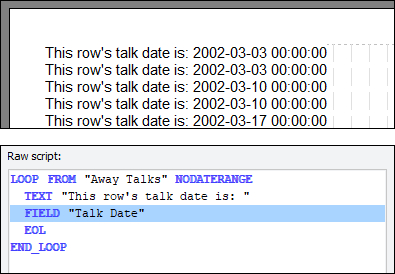 Let's check that: Highlight the FIELD command for insertion before it. Insert a TEXT command using "This row's talk date is: " (no quotes). You should see this echoed on every single line in front of the dates now. Let's check that: Highlight the FIELD command for insertion before it. Insert a TEXT command using "This row's talk date is: " (no quotes). You should see this echoed on every single line in front of the dates now. |
|---|
It is important to try and get into a mindset: when you are looking at commands within a loop, remember that this is operating on a specific row at any one time, the current row. This will hopefully help later, when we get more complex loops.
| Now, please: Click Save Script Optionally click Close Script Then when you are ready, open the "Database" script and continue with module 16. |
|---|
| Previous Module | Next Module |
|---|