pts talk request list
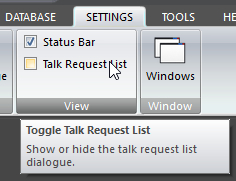 Click Talk Request List on the SETTINGS ribbon panel (or CTRL + T) to toggle the visibility of the Talk Request List window. Click Talk Request List on the SETTINGS ribbon panel (or CTRL + T) to toggle the visibility of the Talk Request List window. |
|---|
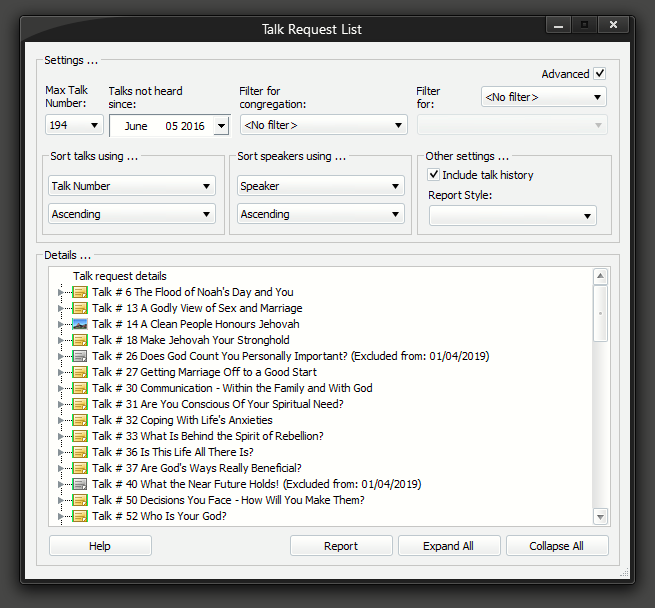
(The window in the above screenshot is displayed in advanced mode)
The Talk Request List is an interactive enquiry facility which allows you to identify:
- Talks which your congregation has not heard recently
- The date on which the congregation last heard the talk
- The speakers who currently give those talks
- The last ten speakers who have previously given those talks to the congregation (optional)
 Please note that the list will only display talks which have not been heard since the specified date and are not scheduled to be heard.
Did you know that the window can be resized to any size you like? But you can't make it smaller than the default. This size and position gets saved.
To learn more about the features of this property page, glance down the table below or highlight the control you are interested in by clicking on the screenshot above.
Max Talk Number
Select the highest talk number which you want to include in the report. The application will examine all home talks up to and including the selected talk number and report accordingly.
Talks not heard since
The application will look for all talks within the previously selected talk number range, which have not been heard since the specified date.
The date entered must be less than or equal to today. You cannot enter a future date.
Filter for congregation
You may limit the enquiry output to a specific congregation. If so, select the required congregation from the drop-down list.
If you wish to display output from all congregations in your database, then select <No filter> which you will find at the top of the drop-down list.
Filter for
You may limit the enquiry output to public talks to a specific:
- Category
Select the required category from the drop-down list.
- Speaker
You must have already selected a specific congregation (see above) for this to work.
If you wish to display all output again then set the filter mode to <No filter>.
Using Advanced Mode If you set the Advanced check box option the application will display additional controls to allow you to tailor the output to your specific requirements. The extra controls be be hidden again If you clear the check box.  Sort Talks Using You may sort the output by Talk Number or Talk Date. Select the required sort option from the drop-down list. If you select Talk Number, the enquiry will display the talk list in talk number sequence regardless of when the congregation last heard the talk. However, if you select Talk Date, the enquiry will display a talk list in the order of the date on which the congregation last heard the talk. The default is setting is Talk Number. Thereafter, it will be your last selected option. Sort speakers using The second sort key determines whether the enquiry sorts the list of speakers who give the talk alphabetically by Congregation or by Speaker. The default is Congregation. Thereafter, it will be your last selected option. Sort order You can choose whether you want to have the sorts performed in ascending or descending order. Select the appropriate option from the drop-down list in both sort sequence controls. The default is ascending in both cases. Thereafter, it will be your last selected option. Include talk history If you wish to include historical details for each talk showing the last ten speakers who has previously delivered it in the congregation and when, check the box. Otherwise, leave it clear. Report Style You may adjust the formatting of the printed report by selecting a different style from the Report Style drop-down list. Read more. Sort Talks Using You may sort the output by Talk Number or Talk Date. Select the required sort option from the drop-down list. If you select Talk Number, the enquiry will display the talk list in talk number sequence regardless of when the congregation last heard the talk. However, if you select Talk Date, the enquiry will display a talk list in the order of the date on which the congregation last heard the talk. The default is setting is Talk Number. Thereafter, it will be your last selected option. Sort speakers using The second sort key determines whether the enquiry sorts the list of speakers who give the talk alphabetically by Congregation or by Speaker. The default is Congregation. Thereafter, it will be your last selected option. Sort order You can choose whether you want to have the sorts performed in ascending or descending order. Select the appropriate option from the drop-down list in both sort sequence controls. The default is ascending in both cases. Thereafter, it will be your last selected option. Include talk history If you wish to include historical details for each talk showing the last ten speakers who has previously delivered it in the congregation and when, check the box. Otherwise, leave it clear. Report Style You may adjust the formatting of the printed report by selecting a different style from the Report Style drop-down list. Read more. |
|---|
Report
You can create a report correctly formatted for printing. The report will show the fully expanded data (but it will not include the talk history). Read more.
Expand / Collapse All
See this help topic for more information about these buttons.