pts help menu
Overview of the Help ribbon panel: 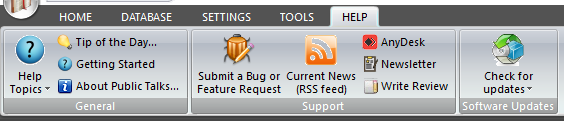
|
|---|
Use the HELP ribbon panel to view the help documentation, gain access to support features and check for updates.
This displays the help documentation.
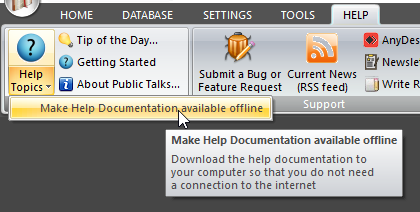 Make Help Documentation available offline Public Talks uses online help documentation by default. This is to keep the setup file size down. However this does mean that you will need a connection to the internet for using the help system. Click on the small drop-down arrow to see a small pop-up menu and you will be able to make the help documentation available offline. The application will download a setup from the website and install the documentation (which is in CHM format). Make Help Documentation available offline Public Talks uses online help documentation by default. This is to keep the setup file size down. However this does mean that you will need a connection to the internet for using the help system. Click on the small drop-down arrow to see a small pop-up menu and you will be able to make the help documentation available offline. The application will download a setup from the website and install the documentation (which is in CHM format). |
|---|
- Tip of the Day
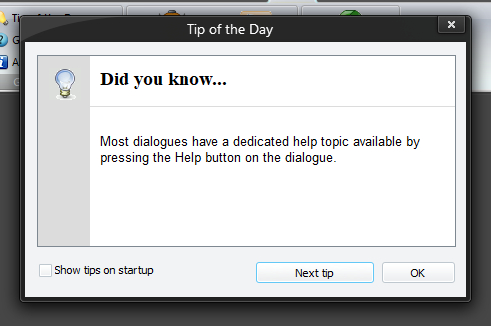 There are about 40 tips that can be displayed on a rotational basis. You can display the tips window on demand by clicking this button. Next Tip Press this button to display the next tip. It goes back to the first tip once it has reached the last one in the list. Show tips on startup The tip window will be automatically displayed when Public Talk starts. There are about 40 tips that can be displayed on a rotational basis. You can display the tips window on demand by clicking this button. Next Tip Press this button to display the next tip. It goes back to the first tip once it has reached the last one in the list. Show tips on startup The tip window will be automatically displayed when Public Talk starts. |
|---|
 I have to be honest here. The tips have not been kept up to date. They probably would need a serious overhaul!
This displays the Quick Start - Getting Started help topic. Use this if you are in a hurry to get up and running.
- About Public Talks
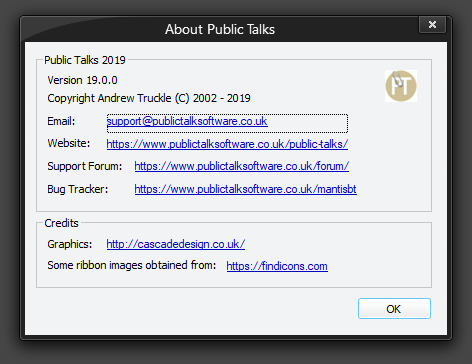 Displays the About Public Talks window. This window has several hyperlinks to useful resources: Support email address Website Support Bug Tracker You can also see links to other resources that I have used for providing images for the application. Displays the About Public Talks window. This window has several hyperlinks to useful resources: Support email address Website Support Bug Tracker You can also see links to other resources that I have used for providing images for the application. |
|---|
- Submit a Bug or Feature Request
It is very easy to let us know about any bugs or feature requests. You can do this through the Mantis Bug Tracker.
You will have to create a user account on MantisBT if you want to make use of this online resource.
An RSS feed is a way to provide news and information to users and they are becoming more and more popular. My RSS feed is linked to my website (which is developed with WordPress).
- AnyDesk
This links you to the AnyDesk website's download page. You can download AnyDesk for free and it allows us to remotely connect to your computer to help diagnose issues you might be having. Simply download and run the software and let us know your address number.
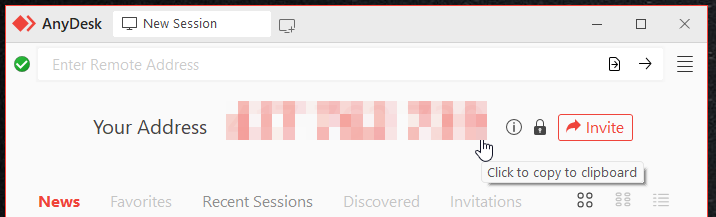
You need to keep AnyDesk running for us to establish a remote connection.
- Newsletter
Have you considered subscribing to the Newsletter? This is one of the easiest ways to keep up to date.
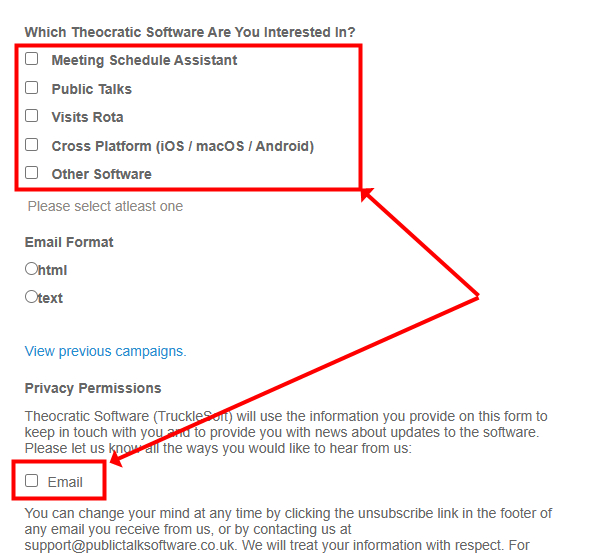
When signing up, please make sure to:
- Select all of the software applications that you would like to get newsletters for.
- Select the Email option in the Privacy Permissions section. This is to comply with GDPR here in the United Kingdom.
- Write Review
Have you used Public Talks for a while now? Then please consider writing a User Review on the website.You review can help brothers decide if the software is suitable for their needs.
Check for Updates
This to displays a drop-down menu where you can:
- Check for New Talks
- Check for Updates
This is an easy way to see if there is a new version of Public Talks available (in the current interface language). Your computer will need to be connected to the Internet to use this feature. It will download the update and start the installation process automatically.
It is recommended that you periodically check for application updates!