pts new custom reports
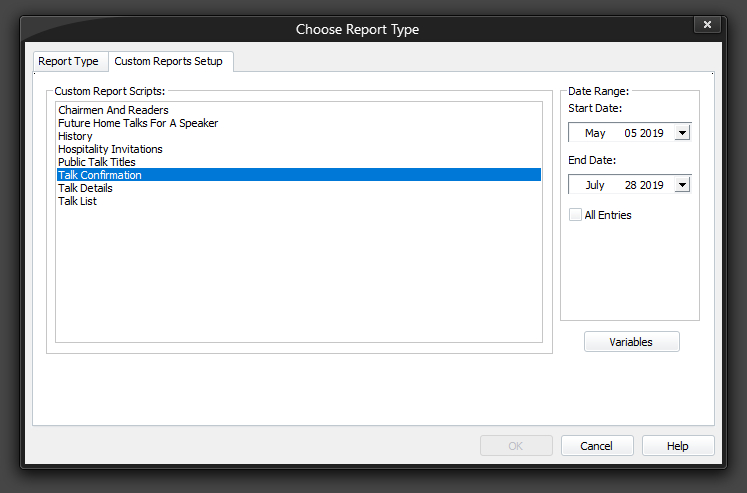
The Custom Reports Setup page allows you to select a custom report and specify how the report will be created. To be able to access this setup page, you must select Custom Reports from the list of report types on the Report Type tab.
To learn more about the features of this property page, glance down the table below or highlight the control you are interested in by clicking on the screenshot above.
Custom Report Scripts 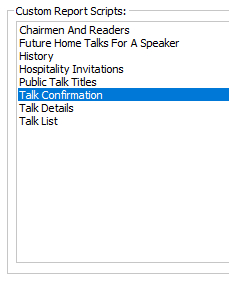 This list box displays all the custom report scripts that you have available on your computer. This list of scripts is maintained by using the Custom Reports maintenance page. Select the report from this list that you want to create. This list box displays all the custom report scripts that you have available on your computer. This list of scripts is maintained by using the Custom Reports maintenance page. Select the report from this list that you want to create. |
|---|
Date Range 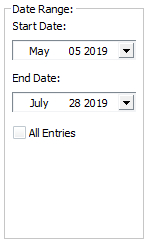 The start date is used in conjunction with the end date. This limits how much database information is available for use in the created report. For example, if you are looking at a Home Talks schedule, or a Watchtower and Readers schedule, you are likely only interested with all the database information within a certain date range. These options will be disabled if the All Entries option is on (see below). The date range gets stored between instances of using the program. The start date is used in conjunction with the end date. This limits how much database information is available for use in the created report. For example, if you are looking at a Home Talks schedule, or a Watchtower and Readers schedule, you are likely only interested with all the database information within a certain date range. These options will be disabled if the All Entries option is on (see below). The date range gets stored between instances of using the program. |
 The date range only applies to Home Talks, Away Talks, Public Talk Titles and Congregations tables - it has no effect on any other table, even ones you may have added. It will be ignored for any other table. The date range only applies to Home Talks, Away Talks, Public Talk Titles and Congregations tables - it has no effect on any other table, even ones you may have added. It will be ignored for any other table. |
| All Entries The All Entries setting will override any start / end date range currently specified. This ensures that all database information will be available inside the created report. The setting gets stored between instances of using the program. |
Variables This button will get enabled or disabled as you select a custom report from the list. If it gets enabled, then you must click on this button to display the Script Variables window: 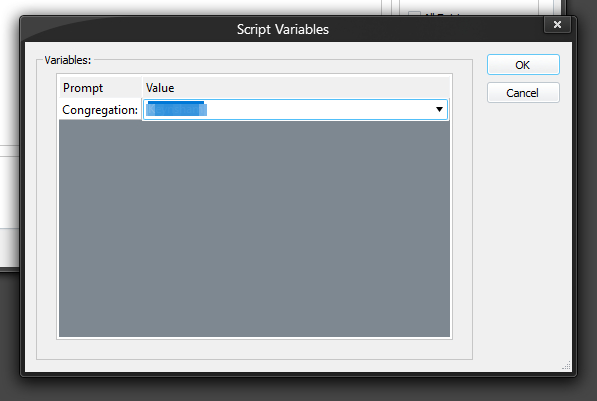 This window displays all the prompts that are in the script file. These prompts were set using the REQUIRES script command. For each prompt, you must specify a text value. If you used the AwaySpeaker variable it will present a list of your away speakers to choose from. If you used the Congregation variable it will present a list of your congregations to choose from. These two variables are for use with LOOP and IF criteria. Look at the Script Editor help topic for full details. For any other variable you must simply go ahead and type in the variable text. Then hit OK. The values you specify will get used when creating the report. This makes the custom reports feature very powerful! This window displays all the prompts that are in the script file. These prompts were set using the REQUIRES script command. For each prompt, you must specify a text value. If you used the AwaySpeaker variable it will present a list of your away speakers to choose from. If you used the Congregation variable it will present a list of your congregations to choose from. These two variables are for use with LOOP and IF criteria. Look at the Script Editor help topic for full details. For any other variable you must simply go ahead and type in the variable text. Then hit OK. The values you specify will get used when creating the report. This makes the custom reports feature very powerful! |
Page Navigation Custom Report documents are different in the way they are displayed. As you will see when you use them, they show as pages. At the bottom of the document is this page toolbar that allows you to move through the pages or jump to a page: 
|