pts change font
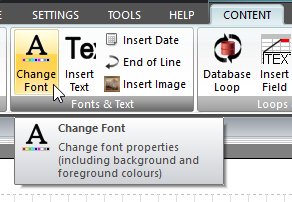 Click Change Font on the CONTENT ribbon panel to display the Change Font window. Click Change Font on the CONTENT ribbon panel to display the Change Font window. |
|---|
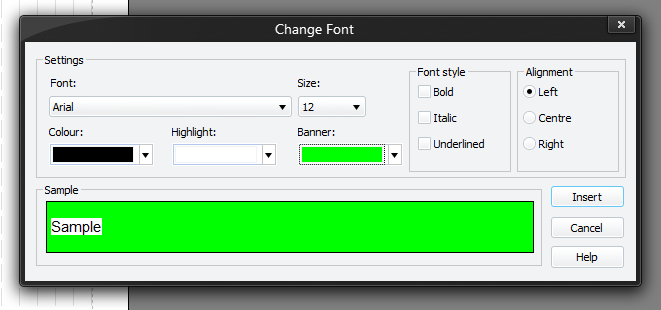
This changes how the text will be displayed from this point on in the report. The settings you make will remain in effect until you explicitly change them. The script editor determines what the current settings are from the current script line. There is a sample area showing you what the new font settings would look like. You must press Insert (or Update if editing an existing command) for your changes to be applied to the current script in the editor.
Although all of these options come under the Font Change button, it does in fact cover five separate script commands:
- ALIGN
- BANNER
- COLOUR
- FONT
- HIGHLIGHT
 The sample scripts provided show all of these features being used. Use them to help you understand all of these options. Only the settings that are changed will get put into the script file.
To learn more about the features of this window, glance down the table below or highlight the control you are interested in by clicking on the screenshot above.
ALIGN
(Command syntax)
Changes the way text is aligned in the future. Choose from:
- Left
- Centre
- Right
Note that the TAB command will only have an effect if left alignment is being used.
BANNER
(Command syntax)
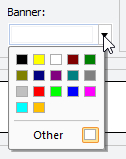 Use the drop-down arrow to display a choice of colours and select the background colour used for TEXT and BLANK lines. It differs from HIGHLIGHT in that it colours blank lines. If you want text to appear transparent on a non-white banner, then you must set the highlight to the same as the banner colour. Also, SEPARATORS show over the top of the banner colour. Use the drop-down arrow to display a choice of colours and select the background colour used for TEXT and BLANK lines. It differs from HIGHLIGHT in that it colours blank lines. If you want text to appear transparent on a non-white banner, then you must set the highlight to the same as the banner colour. Also, SEPARATORS show over the top of the banner colour. |
|---|
Note that you can use a custom colour as well so you are not tied down to the colours available from the palette. Click on Other to use a custom colour to display a colour window:
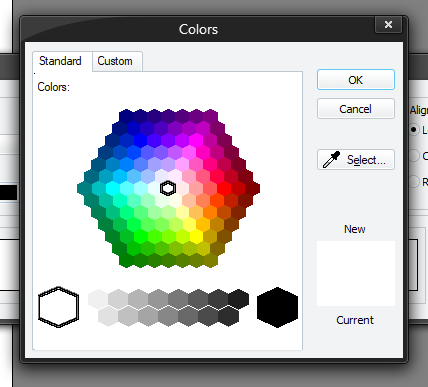
Use the options and features available to choose your desired colour.
See the command syntax for details on how custom colours are represented within the script.
COLOUR
(Command syntax)
Use the drop-down arrow to select the colour used for TEXT.
See BANNER for more details about selecting colours.
FONT
(Command syntax)
Use the various options to set the font properties:
- Font
- Size
-
Style
There are 3 styles that can be applied - bold / italic / underlined.
HIGHLIGHT
(Command syntax)
Use the drop-down arrow to select the background colour used for TEXT.
Note that it only colours the back of the actual words, and not the spaces above and below. It does, however, colour the spaces between words on each line.