pts google calendar auth
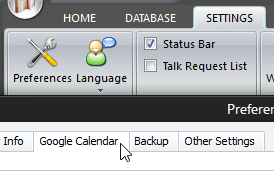 Click Preferences on the SETTINGS ribbon panel (or CTRL + T). Then select the Google Calendar tab. You will see a pop-up message if Authorization is required. If necessary, press the Authenticate button to begin the process. Click Preferences on the SETTINGS ribbon panel (or CTRL + T). Then select the Google Calendar tab. You will see a pop-up message if Authorization is required. If necessary, press the Authenticate button to begin the process. |
|---|
You must already have a valid Google account in order to use the Google Calendar feature. You then have to authorize my application to access your calendars. Usually, authorization only needs to be done once. Here we attempt to take you through the process.
 It should be noted that you will need access to the internet in order to do this. If you have a software firewall installed, you may see pop-up windows asking for permission to access the internet. Please grant permission.
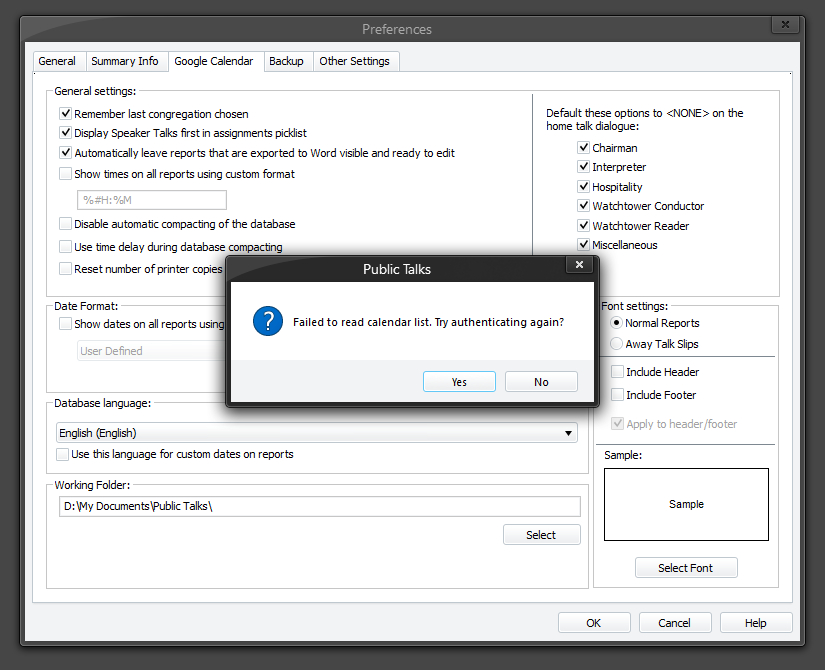
If you are presented with this pop-up message then selecting Yes should begin the procedure. Otherwise you should press the Authorize button on the main window. Proceed to step 2.
Notice that this message is displayed before the actual Google Calendar window becomes visible.
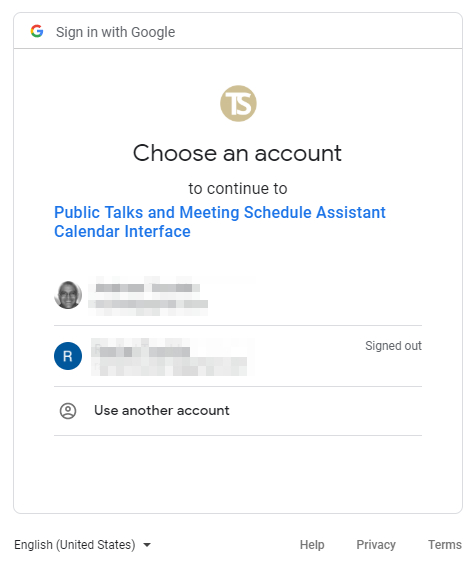 You default web browser should now be visible with a list of one or more Google accounts. Select the account that you would like to use from the list presented. Proceed to step 3. You default web browser should now be visible with a list of one or more Google accounts. Select the account that you would like to use from the list presented. Proceed to step 3. |
|---|
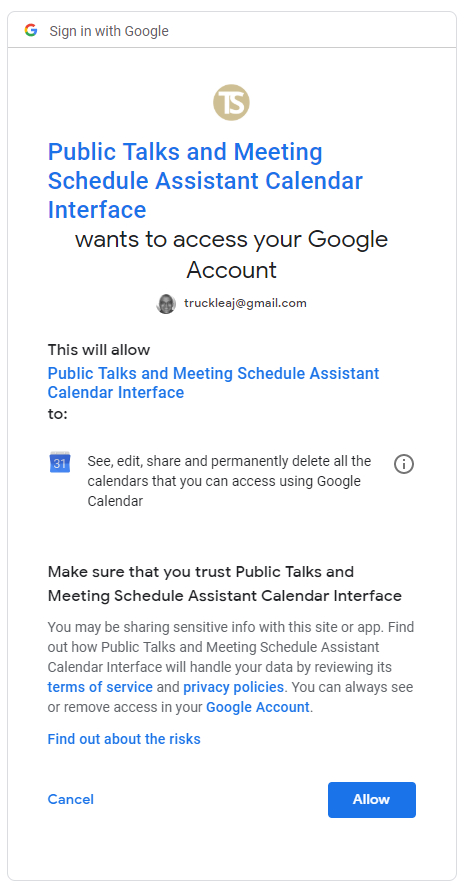 Please read through this page. It is basically saying that Public Talks would like to have access to your calendars so that it can add / delete events. Of course, it will only work with the calendar that you select and it will only delete events created by Public Talks. At the bottom you will see a hyperlink to our terms of service and privacy policies pages on the website. We have to provide this documentation to you as a user. Click on Allow when you are ready and proceed to step 4. Please read through this page. It is basically saying that Public Talks would like to have access to your calendars so that it can add / delete events. Of course, it will only work with the calendar that you select and it will only delete events created by Public Talks. At the bottom you will see a hyperlink to our terms of service and privacy policies pages on the website. We have to provide this documentation to you as a user. Click on Allow when you are ready and proceed to step 4. |
|---|
What you then should see is a message that it worked:
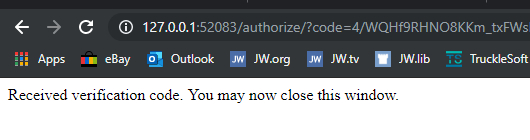
Close down the browser and hopefully you will now see a list of calendars:
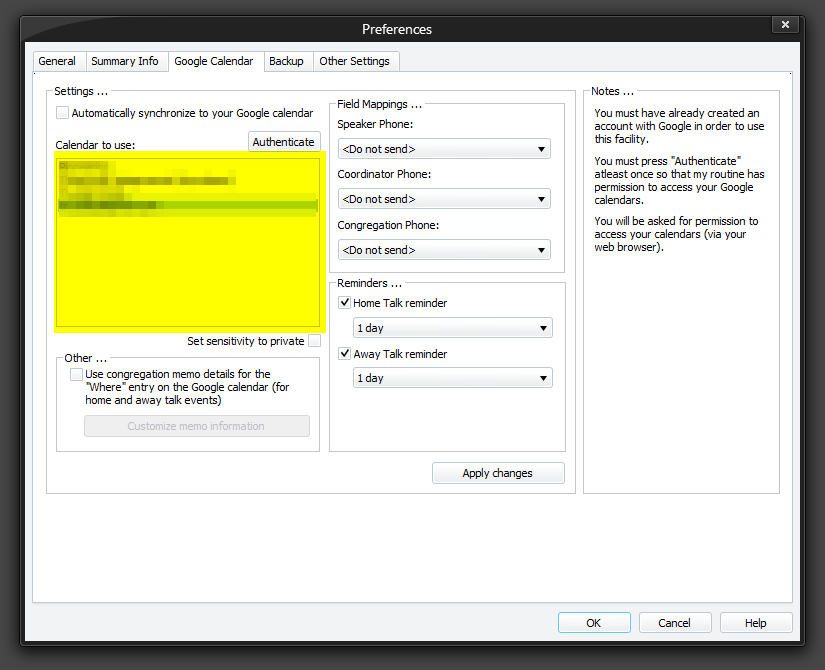
It will only list calendars that you own (can write to). From now on you should not need to authenticate. Please read the Google Calendar help topic to learn about the rest of the features on this window.
To revoke authorization at any point in the future all you need to do in this window is to press CTRL+R. You will need access to the internet and it will remove access from your Google account and reset the calendar list.
You can also check the Google pages on this subject https://support.google.com/accounts/answer/3466521, which also provides information about how you can revoke any third party application yourself from your account.