pts insert field
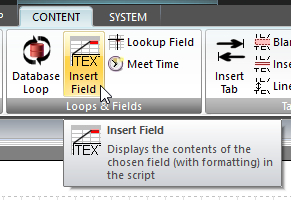 Click Insert Field on the CONTENT ribbon panel to display the Insert Field window. Read more: Command syntax Click Insert Field on the CONTENT ribbon panel to display the Insert Field window. Read more: Command syntax
|
|---|
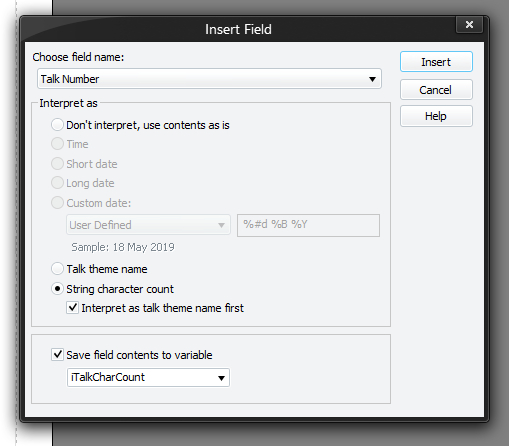
This used to print the contents of the current database row from the named column (field). To get a 'current database row' you must have issued a LOOP command. For nested LOOPs, this always refers to rows being fetched by the innermost loop as of the current script line. In other words, the current script line must be within a set of LOOP / END_LOOP commands.
Please view the sample scripts to see how to use this script command correctly. Since the result is a piece of text, it is affected by any FONT, COLOUR or ALIGN settings (and requires EOL to be issued to show on the screen / report).
You must press Insert (or Update if editing an existing command) for your changes to be applied to the current script in the editor.
Choose field name
Use the drop-down list to select the field you want printed out.
Then select how the field is to be printed. There are several ways to interpret the field value as outlined below.
Interpret as
-
Don't interpret
This simply places the contents of the field into the report with no modifications. - Time
If the field holds the time as a text string, then you can use this option. It will display the time in the format specified in the application General preferences This will either be 12 hour (the default) or a custom format.
- Short date / Long date / Custom date
Select Short date / Long date to interpret the text retrieved as a date in your PC's short or long date format.
If you just use the first choice (don't interpret) to pull out a date field from the database, it will be shown in the database's natural format.
Select Custom date if you want to specify yourself how the date is to be displayed in the report (see Insert Date help topic for more details about customizing dates).
- Talk theme name
Most of the tables only store the talk number, so use this choice if you want to translate the talk number into its associated theme.
- String character count
This option is only available when Save field contents to variable is selected. It fills the variable with the count of characters in the field contents, rather than the contents themselves. The result can thus be used in numeric comparisons.
Since talk theme numbers are normally translated into the corresponding title by selecting Talk theme name (see above), in order to collect the character count for a talk number as a title string you should also select Interpret as talk theme name first.
- Save field contents to variable
This option should be used by advanced custom script users. It assigns the field value into an existing variable that you have declared with the REQUIRES command (or you can type in a new dynamic variable to use). There-after you can use that variable (field value) at some other place in the report. It has many uses! You might have to refresh the script to show any changes.