pts restore database
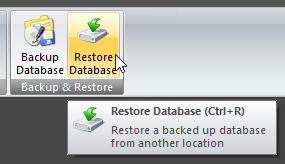 Click Restore Database on the DATABASE ribbon panel to display this window. Or press CTRL + R. Click Restore Database on the DATABASE ribbon panel to display this window. Or press CTRL + R. |
|---|
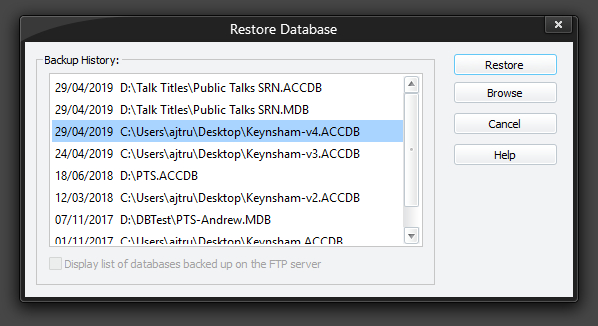
Use this feature to restore a previously backed up database. The backup history presented is sorted in descending date order. If you backed up the database to the same backup name on more than one occasion (e.g.: you backed up the database twice to C:\Backup1.MDB) then only the most recent date is displayed.
To learn more about the features of this window, glance down the table below or highlight the control you are interested in by clicking on the screenshot above.
Restore
Select the file you want to restore and click the Restore button.
- The application will initially verify the backup still exists.
- Then, you are asked to confirm that you want to proceed (since the operation can't be reversed).
- Finally, it proceeds to restore the file (using the encrypted password, if any, associated with the database).
 Depending upon the file size and where it is being restored from, a progress window will appear which has a cancel button. You can press this cancel button to abort the restore procedure. If you do this, or a problem is encountered, the original database is left unchanged.
Browse
Is the database file you want to restore not shown in the history log? Then click the Browse button and you can then navigate to where the file is and restore it from there.
Note that you can't use the Browse button to restore password protected databases.
Display list of databases backup up on the FTP server
This option is only enabled if you have setup the FTP settings in the Backup preferences:
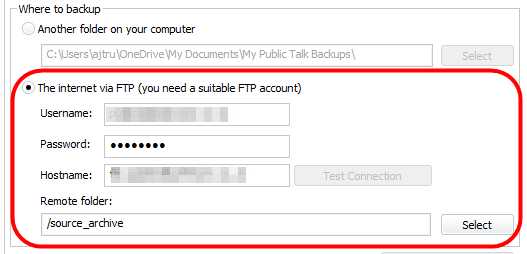
When the option is on the application will connect to the FTP server and list any available backups found. You can then select one of these and it will be downloaded and restored.
See the Support Files help topic if you want to use ACCDB databases.