pts congregations sync data
This feature has been implemented to make it easier for Talk Coordinators to transfer their latest details between each other. This is how the feature would work (in theory):
- Export your congregation data into a INI file
- Email your INI file to the talk coordinator
- He synchronizes your INI file into his database
- He now has your update to date details
Likewise, a coordinator could email you his latest INI file and you would synchronize it into your database.
You create your INI data file from the Congregations maintenance page.Select your congregation in the list and then click the Export button. It is most likely that you will only want to export your own congregation data.
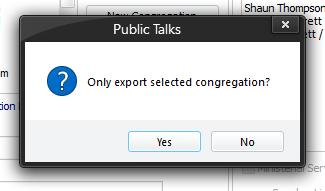 You are then asked if you want to only export the selected congregation. You must choose Yes in order to create the INI data file. If you choose No it will export all the congregation data as a tab delimited text file. You are then asked if you want to only export the selected congregation. You must choose Yes in order to create the INI data file. If you choose No it will export all the congregation data as a tab delimited text file. |
|---|
 Next, you are presented with a list of the speakers for the chosen congregation. Use standard windows functionality to select which speakers you would like included in the INI data file. By default all speakers are selected. There could be a number of reasons why you don't want to include a speaker in the export. Maybe he is not giving away talks for a given period of time. Perhaps he is a ministerial servant and has not yet been approved to give an away talk. Also, you might have some hybrid names listed, where two brothers did a symposium together and you would want to exclude those from the export. Click OK once you have confirmed your selection is correct. Next, you are presented with a list of the speakers for the chosen congregation. Use standard windows functionality to select which speakers you would like included in the INI data file. By default all speakers are selected. There could be a number of reasons why you don't want to include a speaker in the export. Maybe he is not giving away talks for a given period of time. Perhaps he is a ministerial servant and has not yet been approved to give an away talk. Also, you might have some hybrid names listed, where two brothers did a symposium together and you would want to exclude those from the export. Click OK once you have confirmed your selection is correct. |
|---|
Next, you are asked to specify the filename and location of the INI file that will be created. The application will default the filename to the same name as the chosen congregation but feel free to change it to whatever you like.
As you can see, it is quite simple to export your data and create a INI file. Now you can email it to the relevant coordinator (maybe you can use the Congregation Link to do this (if it has been setup as the coordinator's mailto: email address).
Click Import on the Congregations maintenance page to begin the process.
Next, change the file type to Congregation (*.INI) and select the INI file that you received from the Talk Coordinator and click Open.
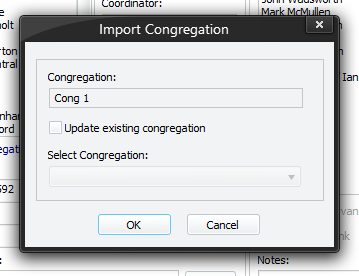 Next, you are presented with this window. Use this window to tell the program how you would like it to treat this INI data. Is it a new congregation being imported or an update to an existing congregation? The application will attempt to determine this for you. If it gets it wrong, then just alter the options accordingly! Other factors might cause the application to make the wrong decision. What if you have miss-spelt their congregation name for example? This would cause it to think it is importing a new congregation which would not be correct. So, it is up to you to tell Public Talks how to treat this data. When you are ready, click OK to go to the final step of the procedure. Next, you are presented with this window. Use this window to tell the program how you would like it to treat this INI data. Is it a new congregation being imported or an update to an existing congregation? The application will attempt to determine this for you. If it gets it wrong, then just alter the options accordingly! Other factors might cause the application to make the wrong decision. What if you have miss-spelt their congregation name for example? This would cause it to think it is importing a new congregation which would not be correct. So, it is up to you to tell Public Talks how to treat this data. When you are ready, click OK to go to the final step of the procedure. |
|---|
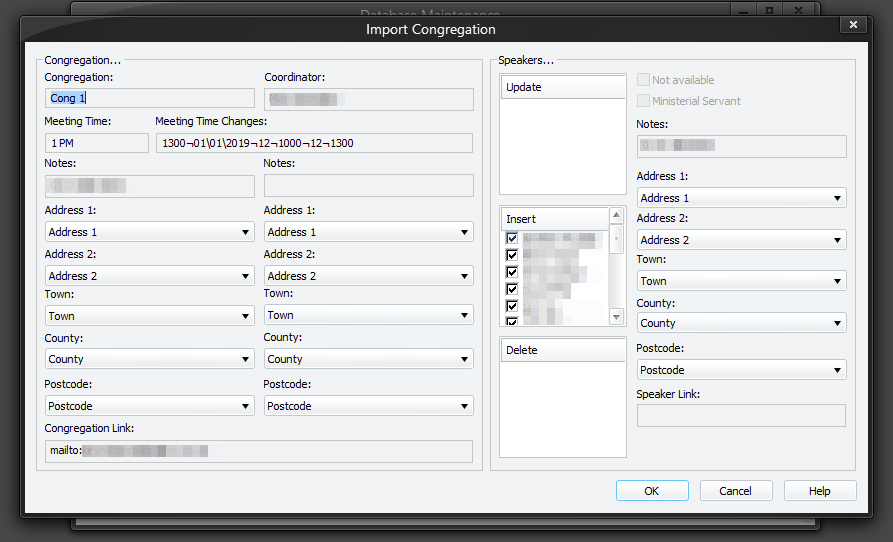
This window presents some of the data to you collated from the INI file. The left hand side shows details about the Congregation / Coordinator and the right hand side shows details about the Speakers. Here are some features of the window:
- Use the memo drop-down lists to select which of the memo data fields in the INI file you want mapped to yours. Set the drop-down list to <Exclude> if you don't want it changed from what you already have.
- Hover the mouse over the Congregation, Coordinator or speaker notes to see the latest memo data in a tooltip (same as Congregations maintenance page).
- Right-click a speaker if you want to exclude him from the synchronization process.
Why might you want to exclude a name from being synchronized? Maybe it has been spelt wrong and will be considered an Insert rather than a Update. Maybe the coordinator who sent you the INI file uses full names and you only use initials. If necessary, you can edit the INI file manually in a text editor to alter it (i.e.: Full name to Initial letter) and then run the synchronization again.
Hopefully, the functionality added into this window is sufficient to cater for everyone's needs given the variation that might occur with the way memo data might be used.
 Please let me know if you think of something else that would be useful on this window.