pts database security
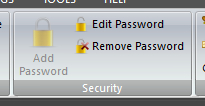 You can find the Security pane on the DATABASE ribbon panel. You can find the Security pane on the DATABASE ribbon panel. |
|---|
When you implement database security, a password is added to the database that also encrypts the data held therein and makes it unreadable by other tools. Microsoft Access 2007 / 2010 (ACCDB file format) offers new encryption technology that is stronger than that of previous MS Access releases (MDB file format), as it uses a stronger encryption algorithm.
 See the Support Files help topic if the Database Security features are disabled. Also, since our databases do contain information that could be considered confidential, it is suggested that you protect your database with a password.
If you use Access or Public Talks to open the database you will need to supply the password. Remember, it is your responsibility, as the user implementing database security to remember your passwords. It is critical that you remember your password. If you forget your password, Microsoft nor the software developer can retrieve it for you.
Store the passwords in a secure place away from the information that they help protect. One possible solution to remember your passwords is to use a password safe. Here is a link to a free tool for this purpose. https://sourceforge.net/projects/passwordsafe.
Add Database Password
Enter your chosen password in the edit box and then re-enter is a second time in the second edit box. When ready, click OK.
You should try to specify a strong password by using a combination of UPPERCASE, lowercase and numerical (1234...) characters. Make sure it is a memorable value otherwise you will not be able to edit / remove it in the future!
Edit Database Password
It can be a good idea to change your database password periodically. Enter the passwords as required and when you are ready click OK.
For obvious reasons you can't leave the password edit boxes empty and you can't use the same password as the old one.
It is your responsibility to keep track of your password usage and what one is currently in use. The backup / restore facility will keep a record of your active password (in encrypted format). But please don't rely on this as the only mechanism for remember passwords!
Remove Database Password
Enter the active password and click OK. The database is no longer encrypted. You should remove the password if you intend on sending the database to another Public Talks software user (unless you are using the Transfer facility, in which case you should inform the user what the password).