pts google calendar
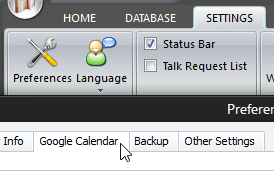 Click Preferences on the SETTINGS ribbon panel (or CTRL + T). Then select the Google Calendar tab. Click Preferences on the SETTINGS ribbon panel (or CTRL + T). Then select the Google Calendar tab. |
|---|

This is a convenient way to have brothers who have mobile devices to be kept up to date with talk information. The alternative is to use the Send to Microsoft Outlook facility.
 You need the Microsoft 4.6.2 (or higher) .NET Framework installed. See the Support Files help topic for more details.
Here are just a few reasons why you might prefer to synchronize your talk information with a Google Calendar:
- Your brothers can check on Chairman, Reader, etc., assignments easily.
- You can have KH Phone # and Coordinators Phone # available when travelling to a talk assignment if you need to contact them.
- From a Talk Coordinator viewpoint, you might get calls about switching dates or brothers when you are not near your computer. With your schedule right on your phone you can at least see who goes where and when. Of course, you can't make changes directly from the calendar.
Here are some points to remember about Google Calendar:
- Most users intend on sharing the calendar with other brothers. Therefore, make a separate calendar just for Public Talks so that your personal calendar events Included.
- Don't make changes online in Google Calendar thinking they will also be made in Public Talks, because it doesn't update that way.
- You can still have your calendar set as Private in the General Settings but if the individual events are set to public they can be viewed by those you choose to share it with. That way you calendar won't show up in Google search result on the web.
You need to click Apply Changes to activate your updated settings and make them permanent.
To learn more about the features of this window, glance down the table below or highlight the control you are interested in by clicking on the screenshot above.
Automatically synchronize to your Google calendar
Switch on this setting if you would like Public Talks to keep your Google Calendar up to date automatically. This will affect the following database operations:
- Adding new talk assignments
- Modifying existing talk assignments
- Deleting talk assignments
- Rearranging talk assignments
There is a small delay whilst the calendar is updated.
The recommendation is that you do not use this option. Instead, make all your changes and then when you are ready, perform a manual update of all assignments from the Home / Away Maintenance page. This way you only have to do one sync rather than many.
Authenticate
You need to authenticate Public Talks to work with your Google Calendar.
If you have already authenticated with Meeting Schedule Assistant application then you shouldn't need to do it again. Read more about authentication here.
Calendar to use
Once you have completed the authentication process you should see a list of available calendars to use.
Select the calendar that you would like to use with Public Talks. All your events will be synchronized with this calendar.
Set sensitivity to private
This setting affects the visibility of the events when they are added into your calendar. For example, if the setting is off, then the Privacy section of the event in Google will be set thus:

There are times when it will be set to Calendar default. Don't be alarmed if it is set to that. It means that your calendar is private. Also, this setting will need to be unchecked if you wish to share the calendar with other brothers, otherwise it will simply show "busy" when they try to view your calendar.
Use Congregation memo details
Switching on this option activates the Customize memo information button. This information is put together to form the Where entry on your Google calendar events. This usually displays a map of the location when the link is clicked on your calendar.
 This pop-up window is displayed for you to configure the memo details. Two of them are mandatory: Coordinator Notes (Congregation) The other 5 Congregation memo fields are optional. Simply tick the fields that you want to include. Use the arrows at the bottom to adjust the order of the fields. This pop-up window is displayed for you to configure the memo details. Two of them are mandatory: Coordinator Notes (Congregation) The other 5 Congregation memo fields are optional. Simply tick the fields that you want to include. Use the arrows at the bottom to adjust the order of the fields. |
|---|
Please remember that the descriptions for the 5 Congregation memo fields can be customized in the application preferences.
Field Mappings
You can include additional information from the database with each event. It is assumed that you would probably want to include the phone numbers.
Just select the fields as required. If you are not interested in including this information you can set it to <Do not send>.
Note, the drop-down list displayed uses your own memo label descriptions. So don't be alarmed if the wording listed on your window is not the same.
Reminders
You can set reminder alerts for the events that are added to your Google Calendar. There is a separate reminder alert for:
- Home Talk Reminders
- Away Talk reminders
Note that Public Talks does not currently support all of the functionality available for reminder alerts.
You can choose from:
- 1, 6 or 12 hours
- 1 to 6 days
- 1 or 2 weeks