pts find entries
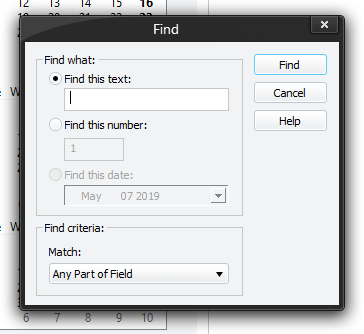 The Find window is displayed by pressing the Find button on the Maintenance window property pages. The Find window is displayed by pressing the Find button on the Maintenance window property pages. |
|---|
Use this window to specify what information you wish to search for and how matching entries are found. You can search for:
- A text string
- A number
- A date
 Some of these options might be disabled depending upon which property page you invoked the window from.
Find this text
When selected, the string edit box gets enabled for you to specify the text string you want to find. All fields will get searched.
Find this number
When selected, the number edit box gets enabled for you to specify the number you want to find. Only numerical fields will get searched.
Find this date
When selected, the date control gets enabled for you to select the date you want to find. Only date fields will get searched. Press on the arrow to choose a date to find or click on the separate parts of the date in the edit box and use the arrow keys to adjust the date.
The Match drop-down list gets set to Whole Field and disabled.
Match
This drop-down list is only enabled if you are searching for a number or string. Setting this correctly will ensure you find the correct entry the first time round. You can match:
- The whole field
- Any part of the field
- The start of the field
When you have set the options up, press the Find button to begin looking for a matching record. If you hear a beep it means you have entered invalid information to find, for example, an empty string. Otherwise, if a record is found, it will get displayed.
To find subsequent entries, press the Find Next button on the property page. You can keep pressing it until you are informed that it has finished searching all the records.