pts plain option loop
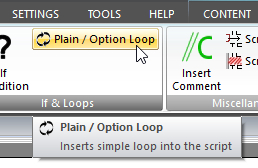 Click Plain / Option Loop on the SYSTEM ribbon panel to display the Insert Option / Counter Loop window. Read more: Command Syntax Click Plain / Option Loop on the SYSTEM ribbon panel to display the Insert Option / Counter Loop window. Read more: Command Syntax
|
|---|
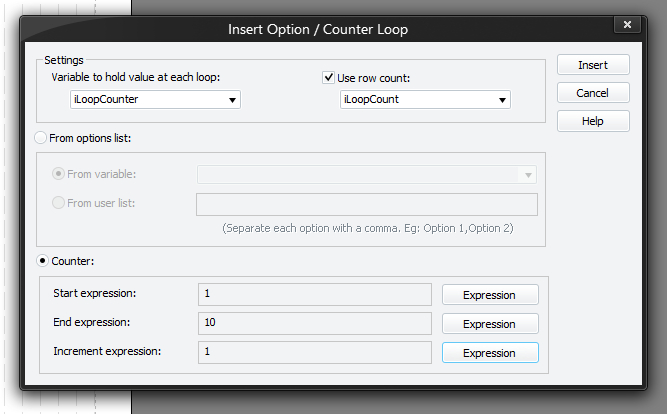
Use this type of loop to iterate through a fixed set of values or number sequence. You must press Insert (or Update if editing an existing command) for your changes to be applied to the current script in the editor.
To learn more about the features of this window, glance down the table below or highlight the control you are interested in by clicking on the screenshot above.
Variable to hold value at each loop
Type in or select the variable that you want to use to hold the loop iteration value. For example:

(Example 1)
Use row counter
Set this option if you would like to retain the number of rows within the loop. This is probably more useful for when you are using a variable containing an unknown set of options, or the numeric counter with a dynamic set of values (as opposed to literal). For example:
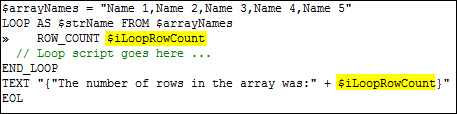
(Example 2)
From options list
You can loop a set of values by either using a user defined set of literal values (see example 1) or an existing variable which contains a set of comma delimited values (see example 2).
Counter
You might prefer to use a numeric counter. Basically, you set the start, end and increment values as required.

(Example 3)
- You can omit the increment; it defaults to 1.
- The start, end and increment expressions are not limited to whole numbers (integers); they can be floating-point numbers as well. They can even go backwards using a negative ‘increment’ (decrement!). As long as you can get from the start to the end by applying the increment, it will work.
- Plain counter loops are static loops. That means that the start, end and increment expressions are evaluated once at the beginning of the loop, using current variable values, and the list of values that the loop will walk is built in advance. Changing the value of variables used within the start, end or increment expressions during the loop will have no effect on how many loops or what values are used in subsequent iterations.